9:16 to 16:9 Video Converter AI Without Cropping or Black Bars

Turn a 9:16 portrait clip into a 16:9 MP4 by filling the sides with matching scenery. Keep the full frame when converting a 1080 × 1920 clip to widescreen up to 1920 × 1080, and preview exactly where the portrait shot sits. Try one clip up to 10 seconds free with no sign-in or watermark.

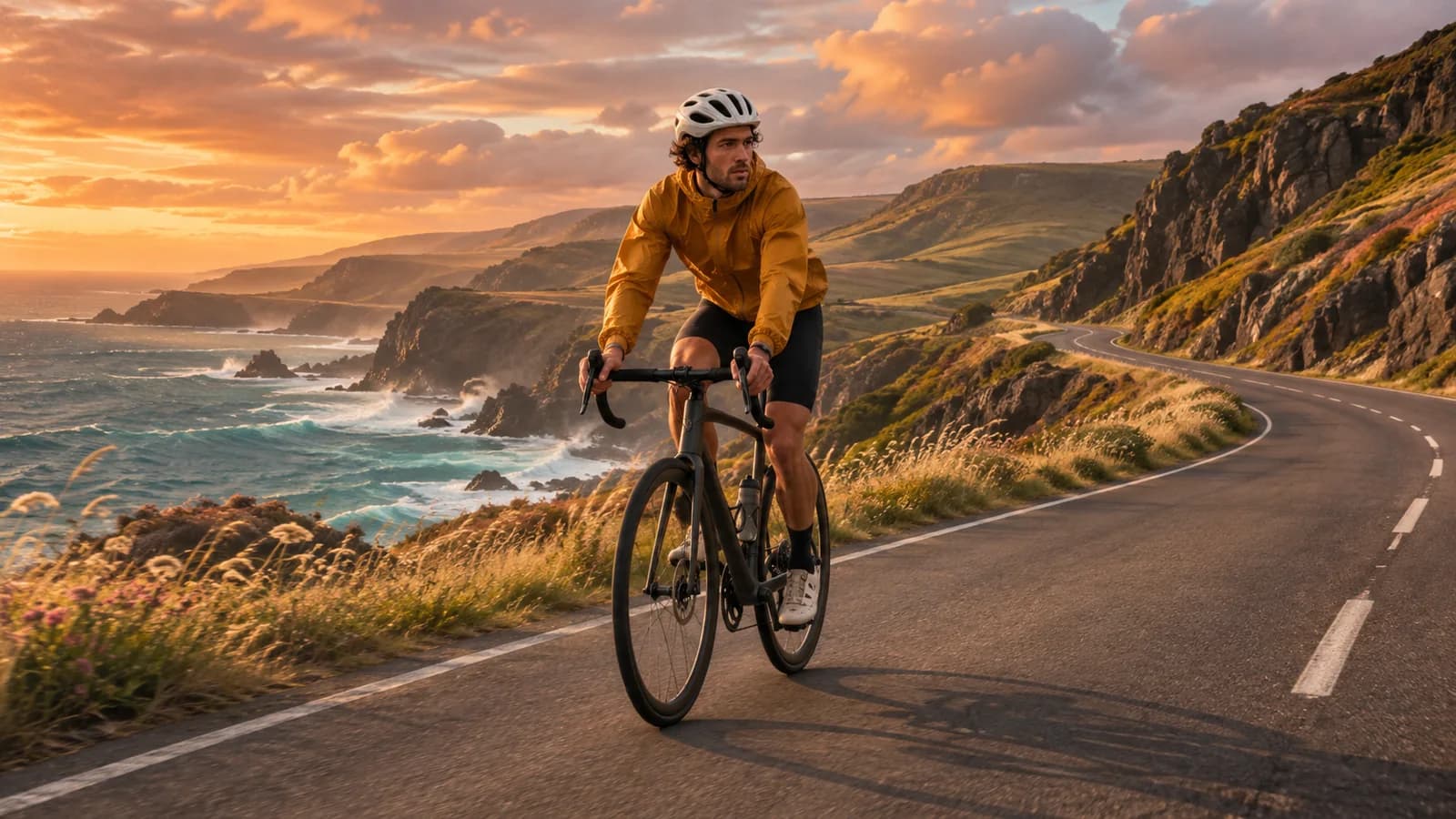
Cyclist in an ochre jacket on a coastal cliff road at sunset
Guide

9:16 vertical → 16:9 Full HD (or 21:9) · drag left, center, or right · auto-detects baked-in bars

Prompt (optional)

Describe only the scenery to extend onto the left and right sides. Leave blank to let AI match your 9:16 clip automatically.

Turn vertical footage into widescreen without losing the shot

Keep the complete 9:16 frame

At full height, a 9:16 clip covers just 31.6% of a 16:9 canvas. Zoom to fill the width and you lose about 68% of the original height, often cutting off heads, hands, or feet. The 9:16 to 16:9 video converter AI keeps the entire vertical composition and fills the other 68.4% of the canvas with matching scenery.
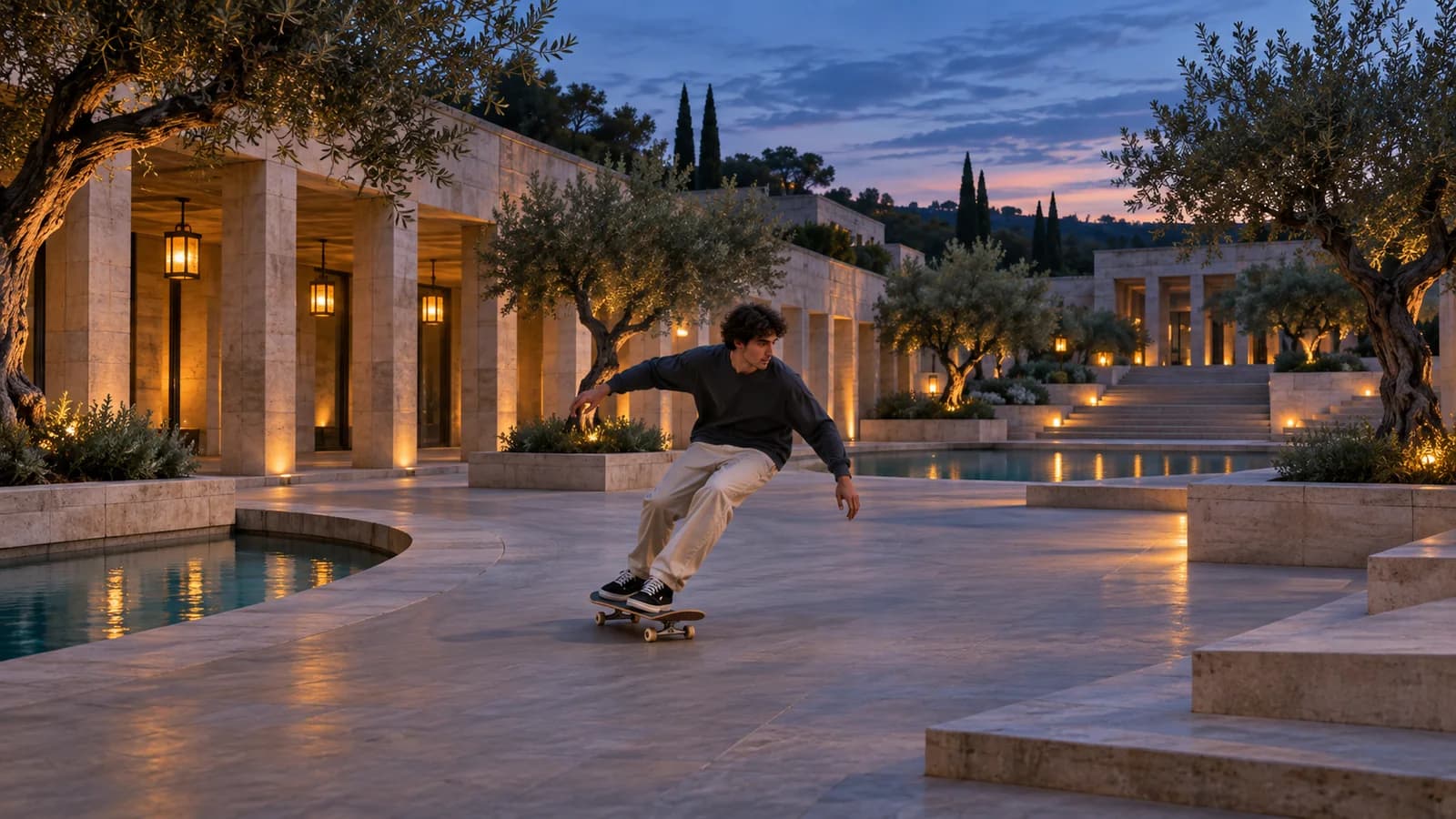
Full-body skateboarder carving through a lantern-lit plaza at blue hour
9:16 original → 16:9 AI widescreen

Choose left, center, or right placement

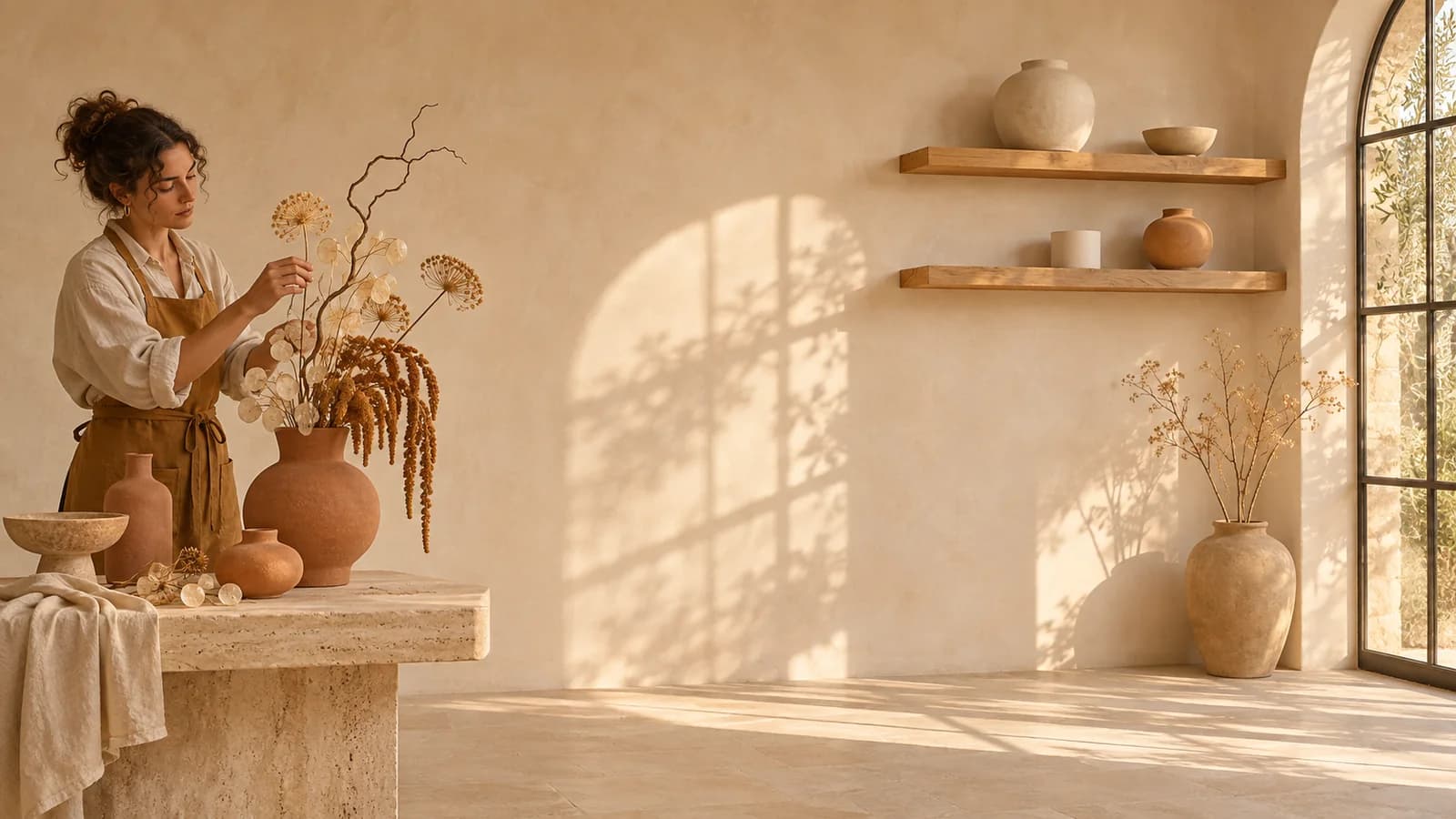
Drag in the live preview to try different positions, or snap the clip to the left, center, or right. Center a solo performance for a balanced shot. Shift an interview or product demo to one side to make space for chapter text, slide titles, or product specs on the other.

Floral designer at the far left of a sunlit limewash studio
9:16 original → 16:9 AI widescreen

Fit portrait footage into a 16:9 project

A portrait clip leaves empty space on both sides when you fit it into a widescreen project. Generate scenery in those areas before dropping the MP4 into a horizontal timeline, embedding it in a webpage, or showing it in a slide deck.

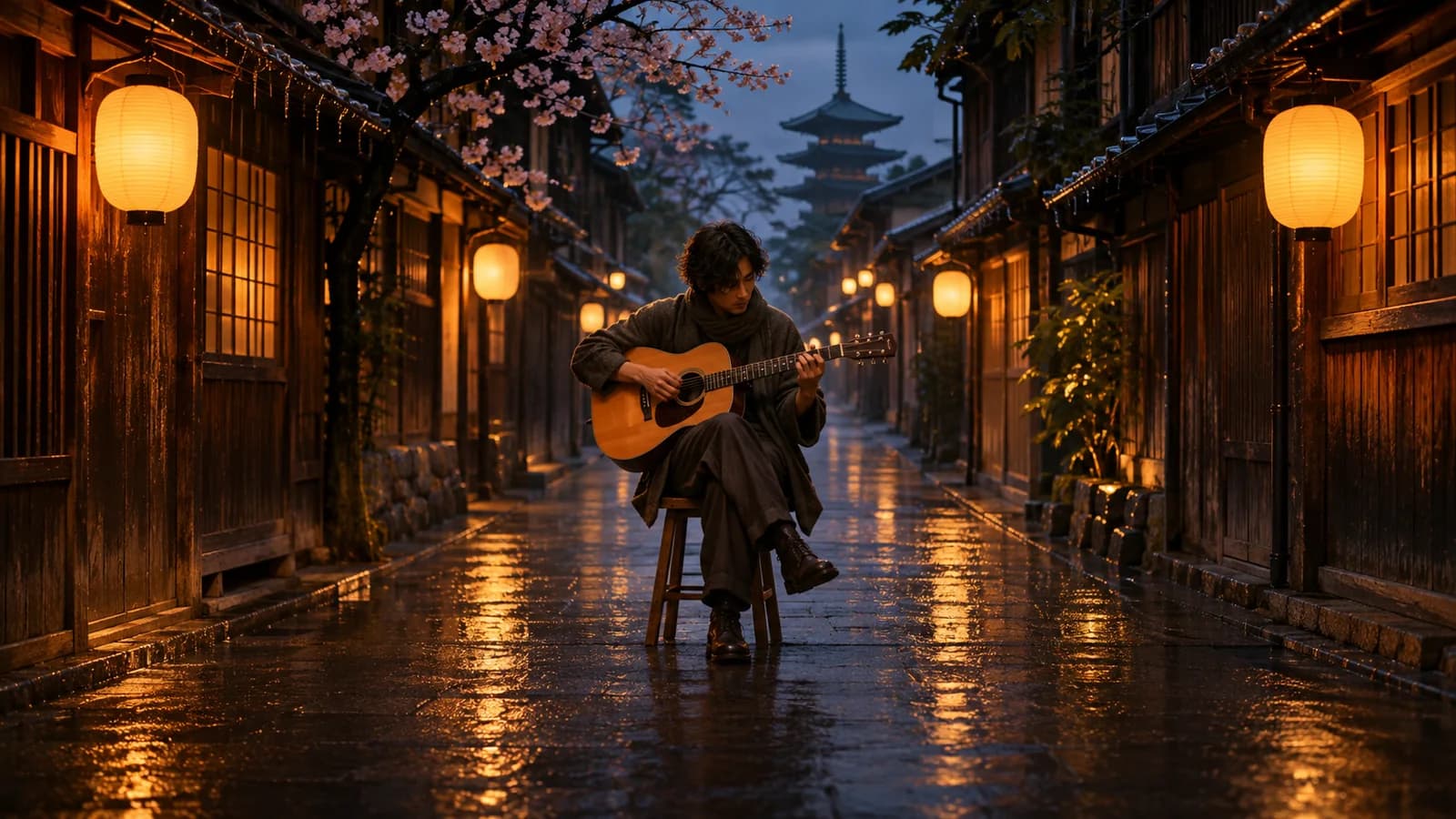
Acoustic guitarist in a rain-soaked Kyoto lane with unmarked amber lanterns
9:16 original → 16:9 AI widescreen

Guide the added scenery or go ultrawide

Leave the prompt blank to continue the scene automatically, or describe what belongs beyond the edges, such as a sandstone ridge or a softly lit studio wall. Choose 21:9 for a more panoramic composition. The same workflow works for camera footage and vertical clips made with Sora, Veo, Kling, or Runway.

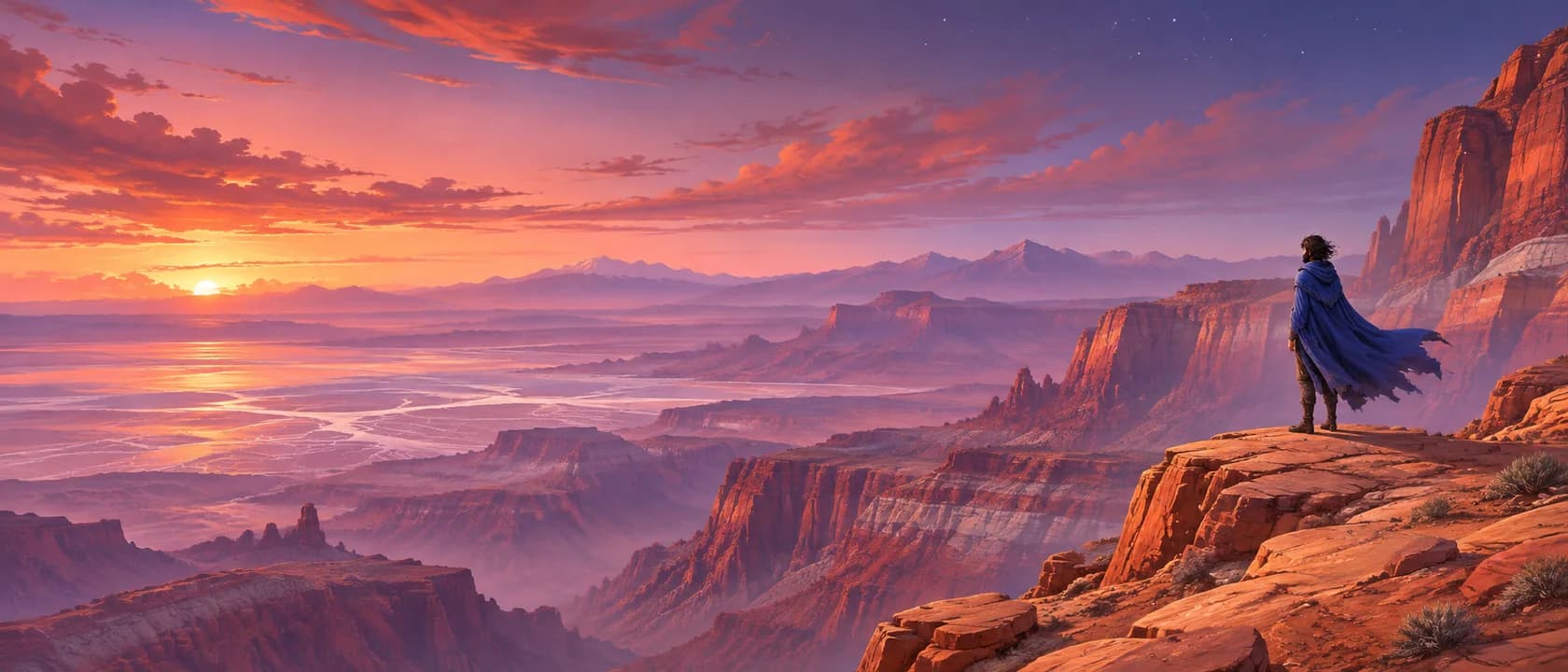
Cobalt-cloaked traveler on the right edge of a painted twilight canyon
9:16 original → 21:9 AI ultrawide

Export up to 1080p with the original sound

Download a watermark-free 16:9 MP4 at up to 1920 × 1080. The conversion keeps the original duration and carries over source audio when present, so dialogue, music, and cuts stay in sync. Upload clips up to 180 seconds and 300 MB when you need more than the 10-second trial.

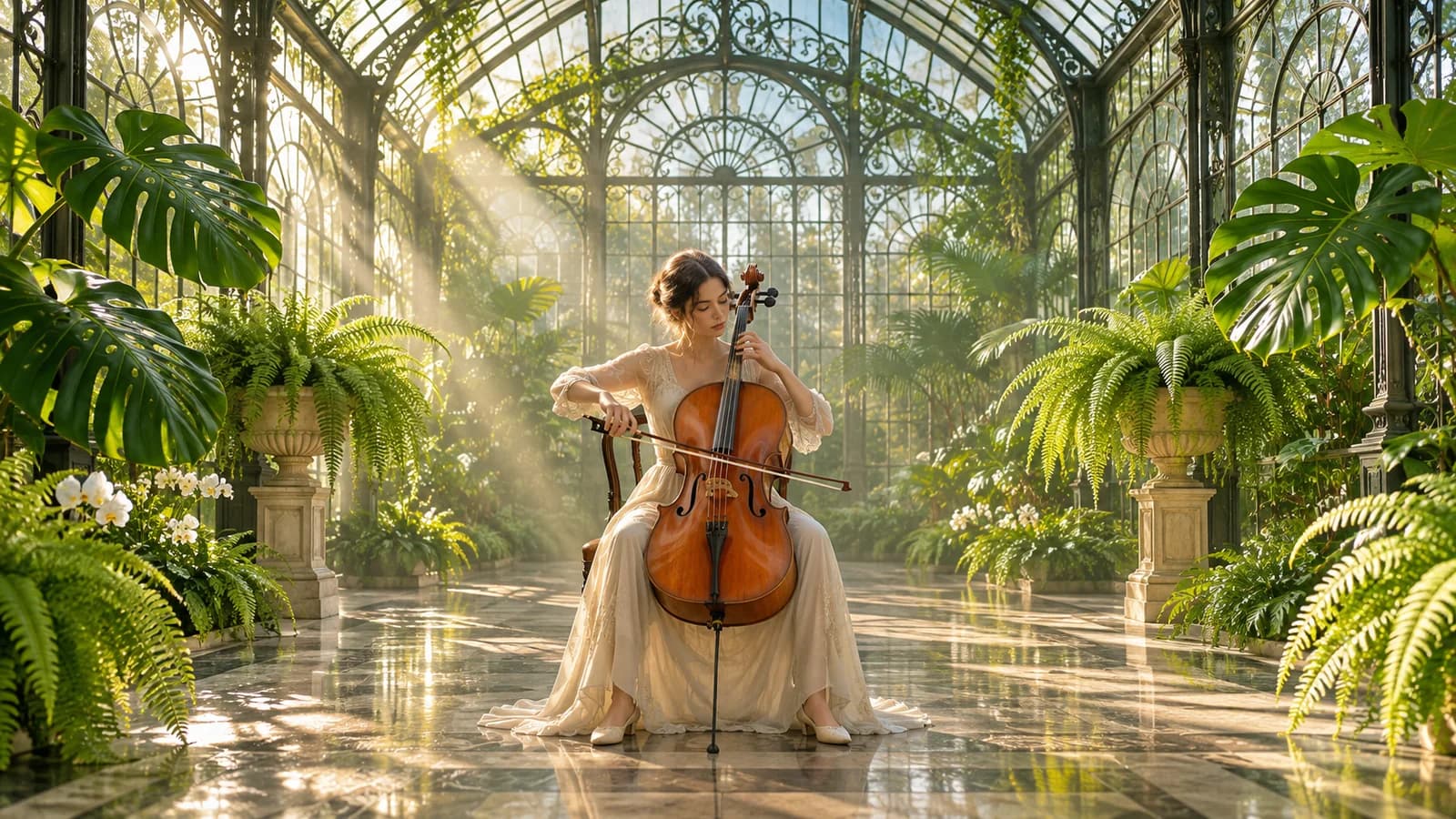
Cellist centered beneath the glass arches of a sunlit conservatory
9:16 original → 16:9 AI widescreen

9:16 → 16:9 compared

Four ways to make a vertical video widescreen

Every method fills a 16:9 player. The trade-off is what happens to the shot itself: how much you keep, whether the subject changes shape, and what appears at the edges.

  1. Loses ~68% height

    Zoom & Crop

    Scales the shot to fill the width.

    Only the middle 31.6% of the original height remains in a centered crop.

  2. Warps faces

    Stretch to 16:9

    Pulls the picture sideways while leaving its height alone.

    Faces look wider and circles turn into ovals.

  3. 68% dead edges

    Black or Blur Bars

    Keeps the original in a narrow center strip.

    The side columns show black or a blurred copy, not more of the scene.

  4. 100% intact · AI fill

    AI 9:16 → 16:9 Expansion

    Fits the whole shot at full height and extends the scene.

    The added scenery reaches both edges without stretching the subject.

Conversion spec

Dimensions, placement, and safe zones

A 1080 × 1920 portrait clip scales to fit the height of a 1920 × 1080 canvas. The source keeps its proportions and the AI fills the remaining width. Center the clip for two equal sides, or move it to leave more room on one side.

16:9 output canvas1920 × 1080

31.6% source width+68.4% AI extension

  1. Left
  2. Center
  3. Right

Full HD Output

1080 × 1920 → 1920 × 1080

Example conversion from portrait Full HD to widescreen Full HD MP4.

Left, Center & Right Placement

Center · Left · Right

At 16:9, the canvas is 31.6% source and 68.4% AI fill in any position.

Widescreen Aspect Ratios

16:9 · 21:9

Choose 16:9 for a standard widescreen canvas or 21:9 for a more panoramic layout.

Baked-In Bar Auto-Trim

Browser trim up to 100 MB

If solid bars are detected in the video pixels, trim them before expanding.

How to use the 9:16 to 16:9 video converter AI

  1. 1. Upload a vertical clip

    Choose a playable MP4, MOV, WebM, or MKV. For the free trial, pick a clip that is 10 seconds or shorter. If the browser detects baked-in bars, review the trim before continuing.

  2. 2. Set the frame

    Select 16:9 and choose where the original sits on the widescreen canvas. Add a short scenery prompt if you want to direct the side fill.

  3. 3. Convert and download

    Click Convert video and download the MP4 when it’s ready. Signed-in jobs keep processing if you leave the page; each account can have one pending or active job at a time.

Where a wider frame makes a difference

Mixed Portrait and Landscape Edits

Match portrait footage to a 16:9 timeline so you can cut between phone clips and horizontal footage without changing the frame shape or losing the original soundtrack.

Product Demos, Courses & Websites

Keep a presenter’s hands in view and leave clear space on one side for callouts, ingredients, or specifications. Use the same vertical take in a lesson or a widescreen landing-page video.

Decks, TV Displays & AI Clips

Fit portrait footage to a slide or display without shrinking it into a bordered box. For an AI-generated shot, widen the scene you have instead of regenerating the entire clip.

Try the framing before paying for a longer clip

  • Try 10 seconds free — no sign-in

    Convert one clip up to 10 seconds online and download it without a watermark. Use a short shot to check how the new edges look around the original frame.

  • Up to 180 seconds & 1080p HD

    Expand up to three minutes of footage in one clip, within the 300 MB upload limit. Export an MP4 up to 1080p with the same running time and original sound when available.

  • 1 credit/sec & 30-day downloads

    One-time packs start at $9.90 for 240 credits, and plans start at $19.90/month. Completed videos stay available in your account for 30 days.

Vertical-to-widescreen converter FAQs

How does the 9:16 to 16:9 video converter AI work without cropping?

It fits the full 9:16 picture to the height of a wider frame and generates matching scenery in the space around it. The vertical shot stays in proportion, with no need to zoom, stretch, or paste in a blurred copy.

Can I convert 9:16 to 16:9 online for free?

Yes. Convert one clip up to 10 seconds free in your browser without signing in. The MP4 download has no watermark.

Why does cropping to 16:9 lose about 68% of a vertical shot?

A crop-to-fill scales the source to fill the width. At that scale the 16:9 frame is only 31.6% as tall as the scaled vertical shot, leaving about 68.4% of its height outside the crop.

What pixel dimensions should I use for a 16:9 video?

1920 × 1080 and 1280 × 720 are both 16:9. A 1080 × 1920 portrait clip is 9:16. For a Full HD widescreen project, use a 1920 × 1080 canvas and fit the exported MP4 into your timeline.

Will the MP4 keep my audio, timing, and 1080p quality?

The MP4 preserves the original duration and source audio when present. Widescreen output is up to 1920 × 1080. That is an export limit, not a guarantee that a low-resolution source will gain detail.

What if my vertical video already has black bars?

The converter can detect bars baked into the file and offer to trim them in the browser on files up to 100 MB. The converter keeps your selected output ratio and builds the wider frame around the visible footage.

Can I control the new scenery and where the original sits?

Yes. Choose left, center, or right placement and describe the scenery you want outside the source frame. Leave the prompt blank to let AI continue the existing scene, or select 21:9 for more room.

What files, limits, and credits should I plan for?

Upload a playable MP4, MOV, WebM, or MKV up to 180 seconds and 300 MB. Beyond the free trial, expansion costs 1 credit per second. Packs start at $9.90 for 240 credits, and plans start at $19.90/month.