Video Aspect Ratio Changer That Keeps the Full Shot

Our video aspect ratio changer adds scene space around your footage for vertical, square, portrait and widescreen layouts. Upload a clip, choose the frame and keep the moment in view.

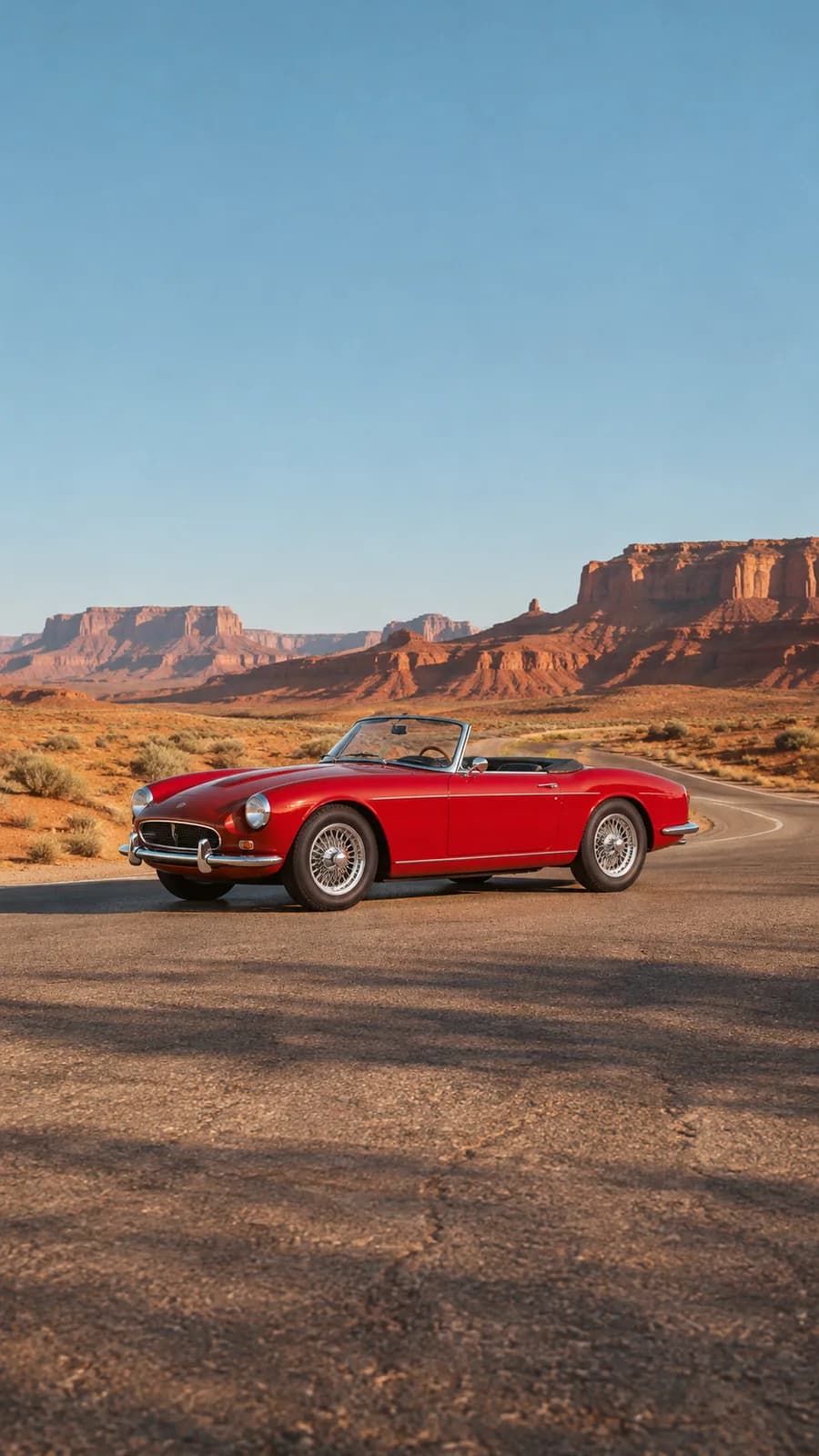
A red vintage convertible centered on a desert road with open sky and mountains above and below
16:9 → 9:16

9:16 for Reels and Shorts · 4:5 and 1:1 for feeds · 16:9 for widescreen

Prompt (optional)

Leave blank to expand from your video.

A video aspect ratio changer for your next placement

Start with the place you want to publish

Choose 9:16 for Reels, TikTok or Shorts, 4:5 for portrait posts, 1:1 for square layouts, or 16:9 for wider screens. Compare these formats in the video aspect ratio changer and preview your source inside the target canvas.
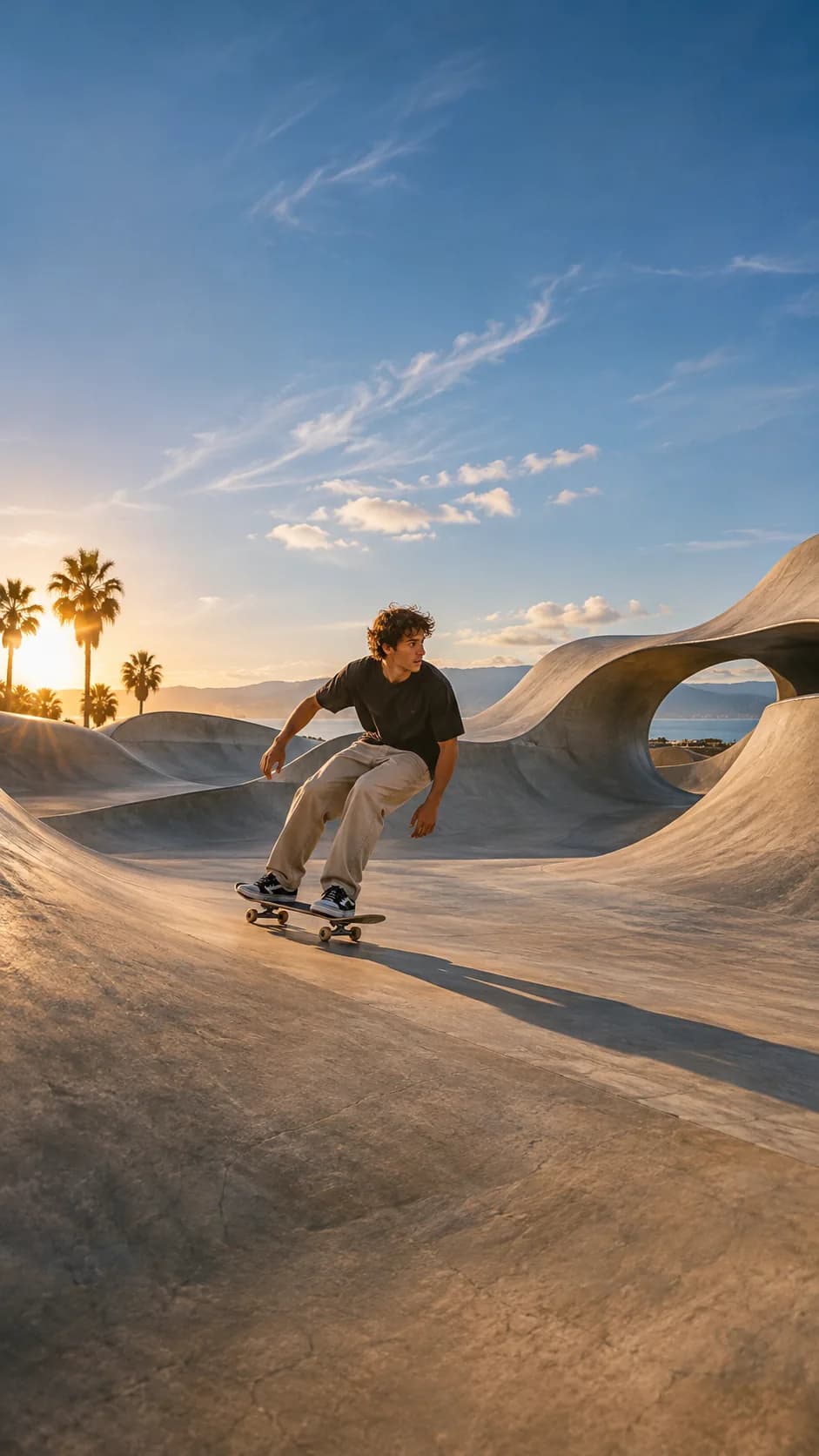
Skateboarder moving across a spacious skatepark in late afternoon light
16:9 → 9:16

Bring a wide scene into a vertical feed

Use the video aspect ratio changer to convert 16:9 to 9:16 by generating space above and below. Keep the subject, setting and movement together as you bring a dance, demonstration or scenic moment into a vertical feed.

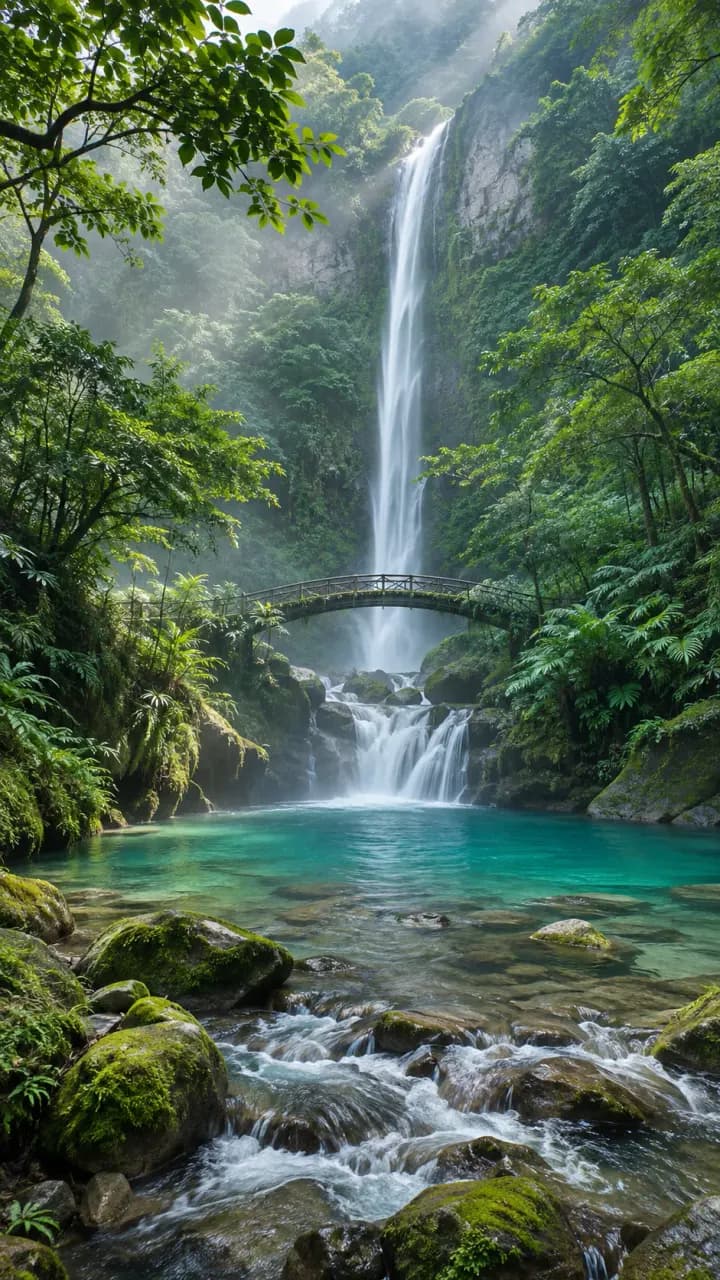
A tall waterfall descending through a lush forest into a turquoise pool
16:9 → 9:16

Open a phone clip onto a wider screen

Select 16:9 in the video aspect ratio changer to give a phone clip a landscape composition for YouTube, presentations or websites. Add scenery beside the source and position it to one side or centrally, keeping your original subject visible.

An atmospheric tram street with colorful buildings and evening reflections
9:16 → 16:9

Give product stories their own feed format

Prepare square and 4:5 campaign placements with the video aspect ratio changer. Add surrounding space to keep packaging, gestures and demonstrations in the composition. After downloading, add your final offer, logo or captions in your usual editor.

A sculptural amber perfume bottle on pale stone surrounded by soft botanical shadows
9:16 → 4:5

Choose where the extra scene space appears

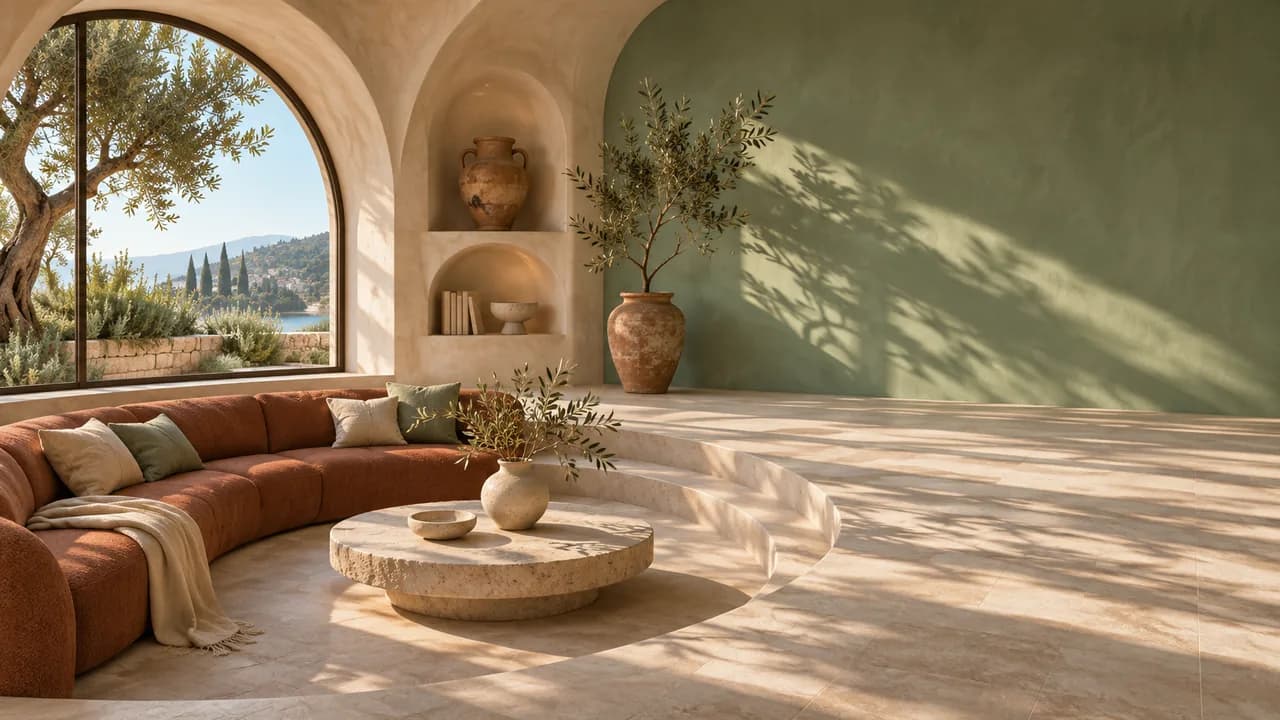
Plan visual balance in the video aspect ratio changer. Extend left, right or both sides when widening, or above, below or both for taller frames. Preview your placement and use an optional prompt to describe the surroundings AI should add.

A sunken living room with a curved terracotta sofa and generous space beside an arched window
9:16 → 16:9

How to use the video aspect ratio changer

  1. 1. Upload your clip

    Select a playable clip to preview your footage right away. The video aspect ratio changer lets you plan its next format before generating.

  2. 2. Choose the target ratio

    Select 9:16, 4:5, 1:1 or 16:9. Adjust expansion direction and source placement, then add an optional scene prompt.

  3. 3. Generate and download

    Check the estimated credits and start the video aspect ratio changer. Review new edges and movement, then download your MP4.

Where the video aspect ratio changer fits your work

Social video publishing

Use the video aspect ratio changer for Instagram, TikTok and Shorts. Give finished demonstrations and travel clips a vertical home.

Product campaigns

Prepare square and 4:5 placements with the video aspect ratio changer. Give products and their surroundings room in a campaign layout.

Websites and presentations

Create a 16:9 version of a phone clip with the video aspect ratio changer. Keep your subject visible in presentations and website visuals.

Why choose this video aspect ratio changer?

  • Useful framing controls

    The video aspect ratio changer brings four common ratios, expansion direction and source placement into one browser workspace.

  • A clear cost before generation

    Check estimated credits before starting. Choose a plan for the amount of video you want to process.

  • Return to your results

    The video aspect ratio changer keeps processing after you leave. Return to check progress and download available results.

Video aspect ratio changer FAQ

Which ratios does the video aspect ratio changer support?

Choose 9:16, 4:5, 1:1 or 16:9 for vertical, portrait, square or widescreen placements. Select the ratio your destination needs and check the preview.

How can I convert 16:9 to 9:16?

Upload a landscape clip to the video aspect ratio changer and select 9:16. Add scene space above, below or both, check the composition and generate.

Can I change a vertical video to horizontal?

Select 16:9 in the video aspect ratio changer to expand sideways. Place the source left, right or centrally. An optional prompt can guide the added surroundings.

How does it keep the full shot when changing ratio?

The video aspect ratio changer adds AI-generated scenery around the source, keeping its composition in view. Review complex backgrounds, fast motion and moving edges before publishing.

Can I use the video aspect ratio changer for free?

Try one clip up to 10 seconds free with no account required. Generation costs 1 credit per second. Check the estimate before starting. Monthly and yearly plans provide additional credits.

What videos can I upload, and what can I download?

The video aspect ratio changer accepts playable MP4, MOV, WebM or MKV clips up to 180 seconds and 300 MB. Download an MP4. Output follows source resolution and selected ratio, up to a 1080-pixel short edge and a 1920-pixel long edge.

Will the video aspect ratio changer keep my audio and timing?

Your output keeps the source duration and includes source audio when present. Review the picture and sound together after generation, then download your result.

Can I use it on my phone and return later?

Open the video aspect ratio changer in a desktop or mobile browser, preview your clip, and start generation. Each account allows one pending or processing task. Processing continues after you leave. Files and results remain available for 30 days.