

Convert 4:3 video to 16:9 and Keep the Full Shot

Bring 4:3 video to 16:9 with the complete composition in view. AI extends the scenery beside your original footage, keeping its proportions, duration and source audio. Upload your clip, preview a wider frame and choose where the extra space goes. Check the credit estimate, generate and download an MP4 for your next edit.

A teal vintage tram centered on a 1970s-inspired coastal platform with cypress trees and warm mist

9:16 for Reels and Shorts · 4:5 and 1:1 for feeds · 16:9 for widescreen

Prompt (optional)

Leave blank to expand from your video.

Take 4:3 video to 16:9 with the whole story in view

Keep the headroom, hands and details that matter

Convert 4:3 video to 16:9 without cropping away the top and bottom of the shot. A pianist keeps their hands and expression in view. An interview retains the objects and gestures that give it context. The complete source composition fits inside the wider canvas, preserving the arrangement you already chose. Take 4:3 video to 16:9 when an important detail sits close to an edge. Preview the full frame before generating, then review those details at the final viewing size. Bringing 4:3 video to 16:9 this way gives an existing recording a wider home while carrying its original visual story forward.
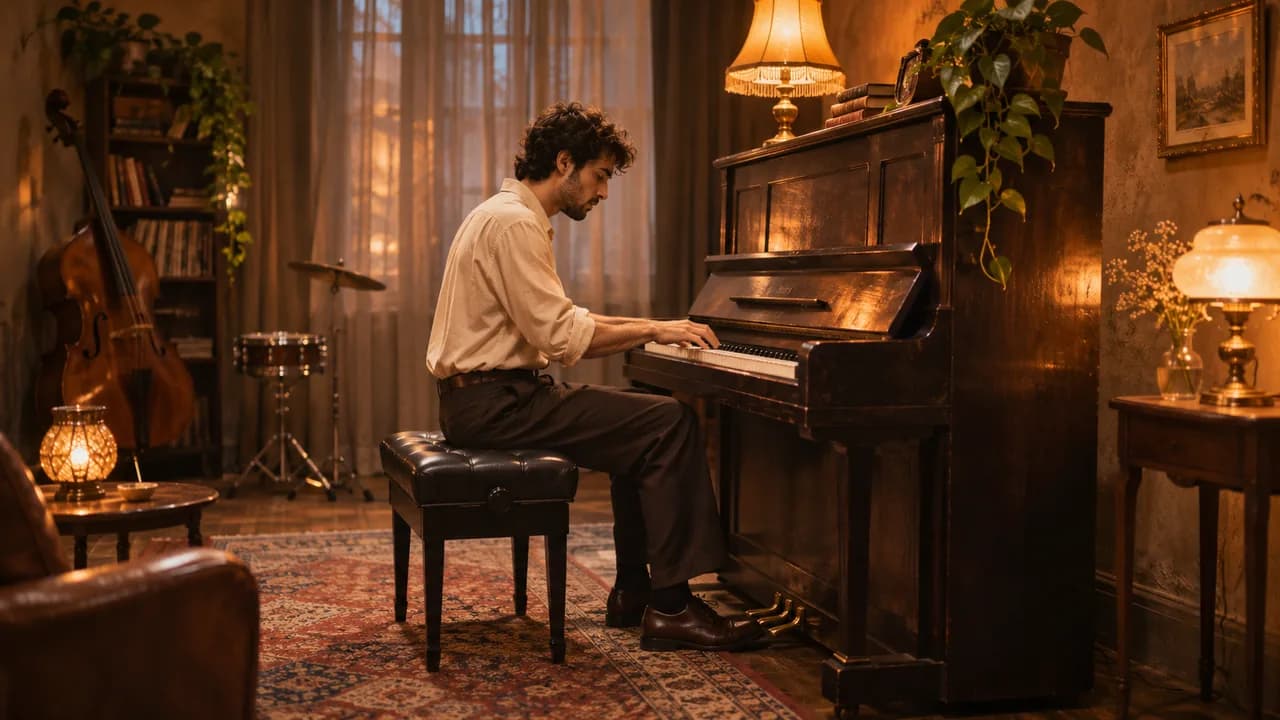
A seated pianist shown from the side at an upright piano in a warmly lit rehearsal room

Expand 4:3 video to 16:9 with more of the setting

A lake can open into a broader mountain scene, and an interior can gain surrounding walls and atmosphere. AI uses the visible footage as context to generate scenery beside the original frame. Convert 4:3 video to 16:9 with an optional description that guides the added environment, lighting or mood. The extra space is an imagined continuation of the scene. For 4:3 video to 16:9, check reflections, moving edges and textures throughout the finished clip. Clear surroundings and steady lighting give the model useful context. This approach creates a fuller setting around a familiar shot, ready for a widescreen sequence or a larger display.

A small red wooden boat centered on a blue mountain lake surrounded by pine forest

Bring 4:3 video to 16:9 with natural proportions

Round windows stay round, faces keep their familiar shape and objects retain their original proportions. Convert 4:3 video to 16:9 by placing the source inside an expanded canvas, with new scene content filling the surrounding area. This helps architecture, artwork and people remain recognizable as the format changes. When taking 4:3 video to 16:9, look at circles, doorways and faces in the preview to judge the composition. The source may be resized to fit the output, so check fine details after downloading. Existing signs and captions also deserve a close look at the intended playback size, especially when the original recording has a small resolution.

A room with a central circular window, a round pendant light and a wooden stool

Give the subject a deliberate place in the wider frame

Take 4:3 video to 16:9 with expansion to the left, right or both sides. Keep a speaker centered, or position a ceramic piece to one side to create breathing room. The framing preview lets you see how the original shot sits inside the new canvas before you spend credits. Convert 4:3 video to 16:9 with a composition that suits your next layout. Leave background beside the subject for a title, a quotation or a supporting graphic added during final editing. For 4:3 video to 16:9 projects, deciding where the space belongs helps the resulting shot feel intentional in its new setting.

Three cream, rust-red and charcoal ceramic vessels on the right with a large open wall to the left

Keep the sound and timing of the original recording

Bring 4:3 video to 16:9 while retaining the source duration and audio when present. A musical phrase, spoken sentence or carefully timed animation keeps its place in the sequence. Download the expanded result as an MP4 and continue working with it in your usual video editor. Convert 4:3 video to 16:9 for a performance excerpt, a narrated scene or a short creative loop. Play the full result to check the new scenery alongside the existing movement and sound. Taking 4:3 video to 16:9 gives those recordings a wider presentation while keeping the timing that makes the original moment work for your audience.

A paper theatre with a red fox playing cello, layered blue mountain scenery and a crescent moon

How to convert 4:3 video to 16:9

  1. 1. Upload your 4:3 clip

    Select a playable recording to preview taking 4:3 video to 16:9 and check that its visible frame contains the scene you want to expand.

  2. 2. Preview the wider composition

    Preview 4:3 video to 16:9 with the 16:9 preset. Choose expansion direction, optionally describe the setting and check the estimated credits.

  3. 3. Generate and download

    Generate 4:3 video to 16:9, review the full result and download your MP4. Check the moving edges and audio before your final edit.

Give existing 4:3 footage a new widescreen destination

Interviews for YouTube

Convert 4:3 video to 16:9 for a landscape interview excerpt. Keep the speaker and original surroundings visible when preparing a wider edit.

Family and travel collections

Bring 4:3 video to 16:9 for a personal film or widescreen slideshow. Give selected memories more surrounding scenery for the next viewing.

Documentaries and presentations

Take 4:3 video to 16:9 for a documentary timeline or presentation screen. Review the generated surroundings for the context of your project.

A clear path from the original frame to a wider result

  • Preview your composition first

    Plan 4:3 video to 16:9 with a visible source boundary and adjustable placement before committing credits to generation.

  • Check the cost before generating

    The duration-based estimate makes 4:3 video to 16:9 costs visible before you start. Choose a clip that fits your available balance.

  • Return when the result is ready

    Start 4:3 video to 16:9 and return later. Processing continues after you leave, with progress and downloads available in your account for 30 days.

4:3 video to 16:9 FAQ

How does AI convert 4:3 video to 16:9?

AI generates surrounding scenery beside your original recording. For 4:3 video to 16:9, the source fits inside the wider frame with its proportions retained. Select 16:9, preview placement and generate. Review the added setting through the full clip before publishing.

Will 4:3 video to 16:9 crop or stretch my footage?

The complete source composition stays visible with its proportions retained. Converting 4:3 video to 16:9 adds space around that composition. Source resolution can change to fit the output, so inspect small text, faces and fine textures in the downloaded MP4.

Can I use a file that already has black bars?

Prepare a clean source before taking 4:3 video to 16:9. If black bars are already part of the video pixels, use our Remove Black Bars from Video tool to detect and trim baked-in borders in your browser (or crop them in an editor first), since expansion uses the uploaded frame as context.

Which formats, lengths and output sizes are supported?

Upload MP4, MOV, WebM or MKV up to 180 seconds and 300 MB. A 4:3 video to 16:9 result downloads as MP4 up to 1920 × 1080 pixels, depending on source resolution. Smaller source recordings can produce smaller outputs.

Can 4:3 video to 16:9 recover the original missing scene?

The surrounding scene is generated from the visible footage. Treat 4:3 video to 16:9 as a creative expansion of that recording. For documentary or historical material, review whether imagined surroundings suit the project and make the nature of the edit clear to your audience.

Does 4:3 video to 16:9 keep the original audio?

Yes. Your 4:3 video to 16:9 MP4 retains the source audio when present and the original duration. Play the complete result to check picture and sound together, especially around movement, shot changes and the beginning or end of a spoken passage.

Can I try 4:3 video to 16:9 for free?

Try one clip up to 10 seconds free with no account required. Generation costs 1 credit per second. Monthly and yearly plans provide additional credits for 4:3 video to 16:9 and other expansion tasks.

What footage works best, and can I return later?

Clear surroundings, steady lighting and controlled movement give useful context for 4:3 video to 16:9. Each account allows one pending or processing task. You can leave while it processes and return to your account. Files and results remain available for 30 days.