Remove Black Bars from Video AI Without Cropping or Blur

Use this remove black bars from video AI tool to replace side pillarbox or top-and-bottom letterbox borders with scenery that matches your shot. Preview the framing, keep the whole picture and original sound, and try a 10-second clip free with no sign-in or watermark.

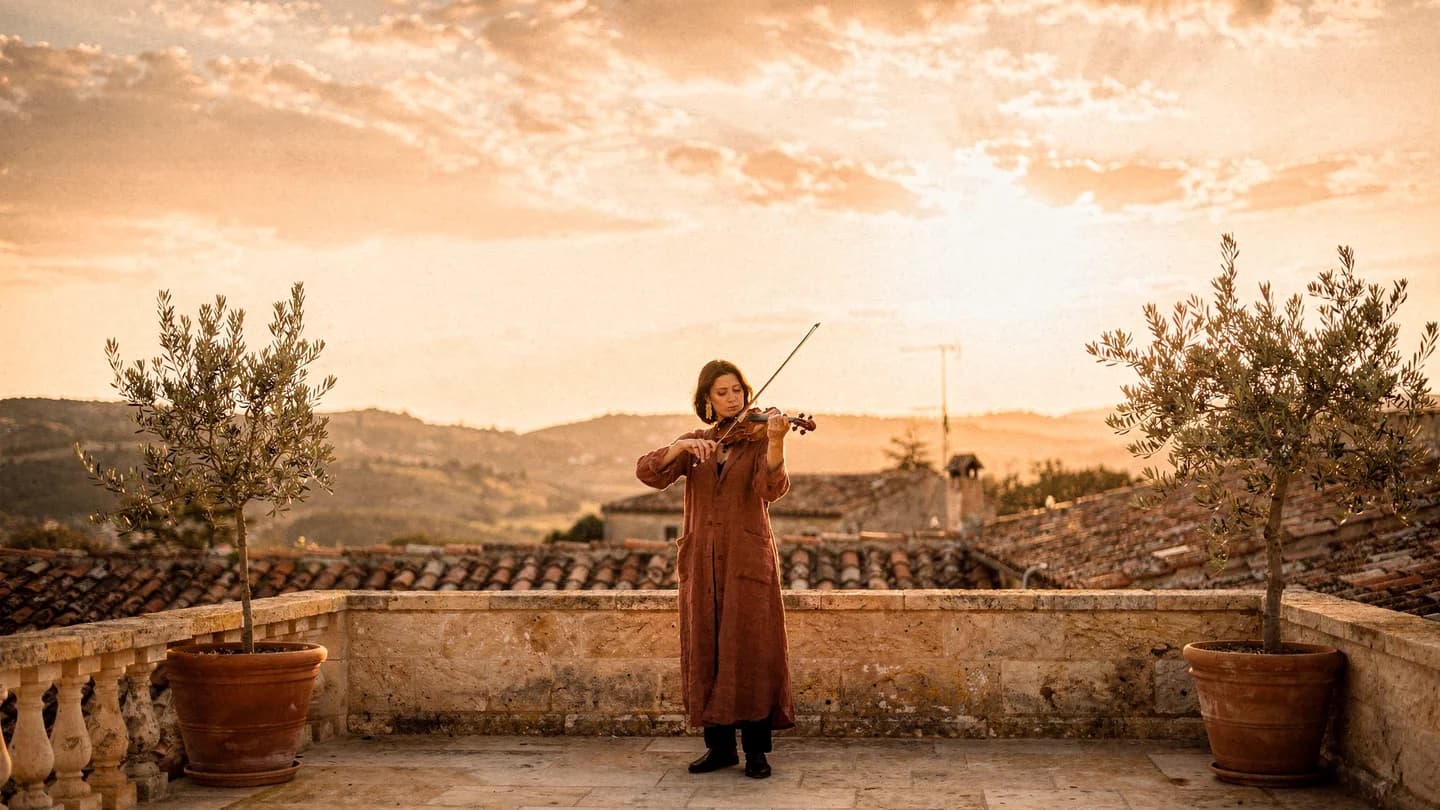
Violinist in a rust linen coat on a sunlit rooftop terrace

Fill pillarbox sides (9:16 / 4:3 → 16:9) or letterbox bars (16:9 → 9:16 / 4:5) · auto-detects baked-in bars

Prompt (optional)

Describe only the scenery you want where the black bars were. Leave blank to let AI match your footage automatically.

Fill black bars without losing the shot

Fill pillarbox bars on vertical video

Make a vertical TikTok, Reel, Short, or phone clip feel at home on a 16:9 screen. Zooming a 9:16 shot to fill 16:9 cuts away roughly 68% of the original picture. Video outpainting keeps the whole shot and creates matching scenery on the sides instead of repeating a blurred copy.
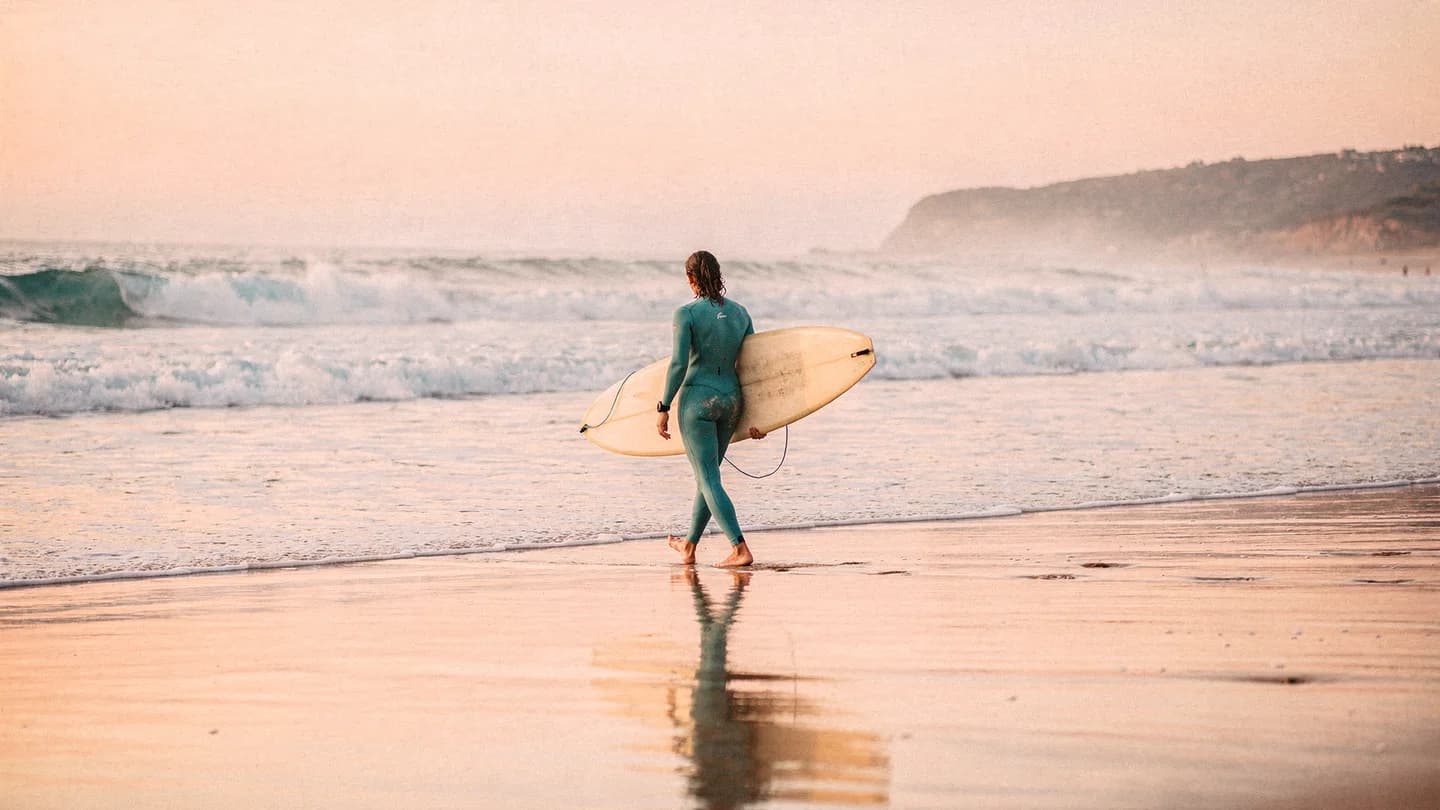
Surfer carrying a longboard across wet sand on a pastel coast
9:16 original → 16:9 filled frame

Replace top and bottom letterbox bars

Give a widescreen YouTube clip, cinema shot, or camera recording a 9:16 or 4:5 frame. AI extends skies, ceilings, or foregrounds above and below the original shot, so you don’t cut people and action out of the sides just to fit a tall feed.

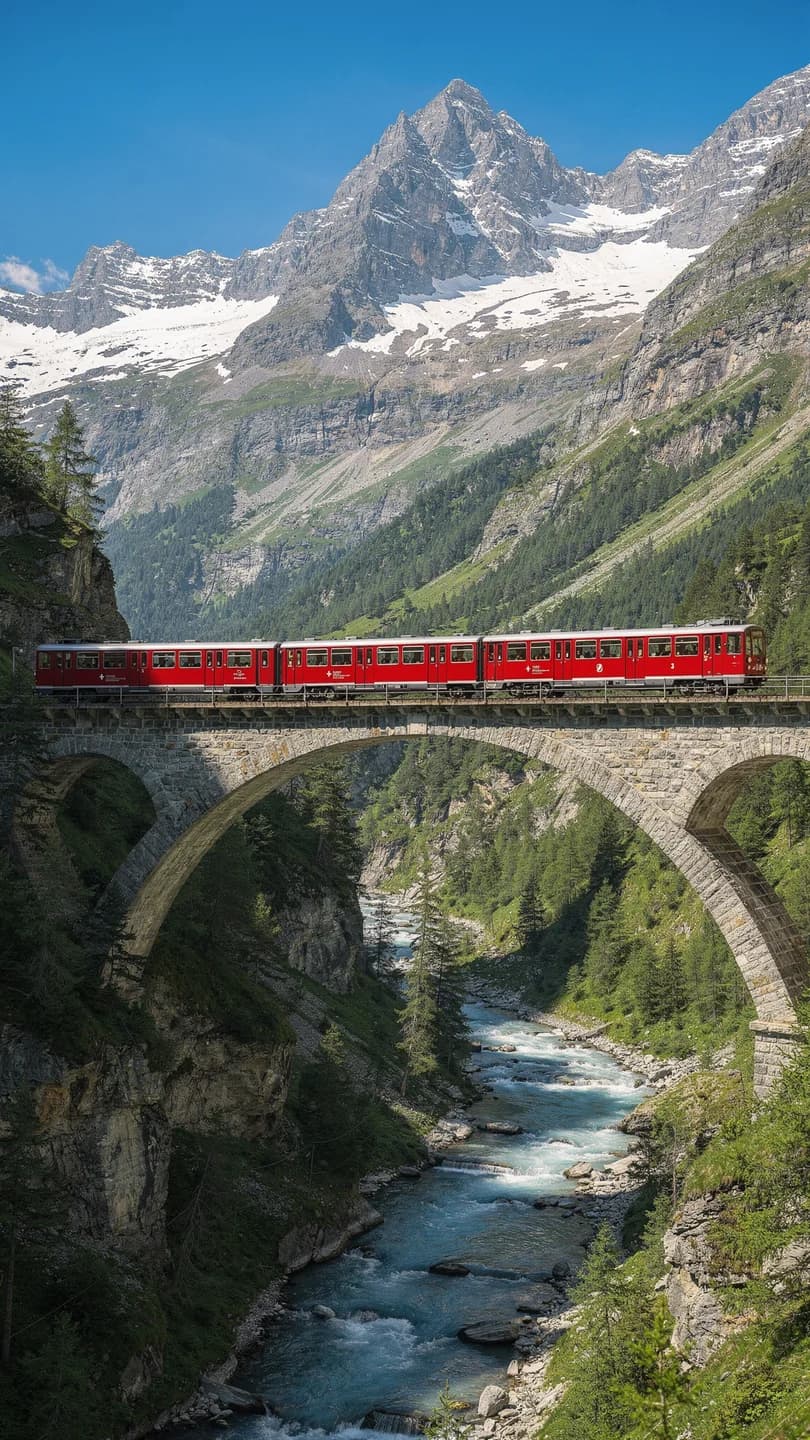
Red alpine train on a curved stone viaduct between snowy peaks and a pine valley
16:9 original → 9:16 filled frame

Bring 4:3 and square footage to widescreen

Fill the margins on classic home movies, VHS transfers, retro gameplay, square product clips, and renders from Veo, Sora, or Kling. Unlike stretching to fit, AI fills the outer frame without changing face shapes or distorting the geometry of the original shot.

Brass trumpet and espresso cup in an amber-lit vintage record café
4:3 original → 16:9 filled frame

Trim baked-in bars and choose where to fill

The tool scans your upload for dark borders encoded in the file. If it finds a match, trim the bars in your browser with one click, or keep the original. Then drag the clip left, center, or right in the framing preview to choose where the new scenery goes and leave room for captions.

Potter at a wheel on the far left of a sunlit lime-plaster studio
9:16 original → 16:9 filled frame

Keep the timing and sound of the original

Export a watermark-free MP4 up to 1080p (1920 × 1080 for widescreen). Expand uploads up to 180 seconds and 300 MB. AI fills the frame without speeding up or slowing down the clip, and the export keeps the source audio when present.

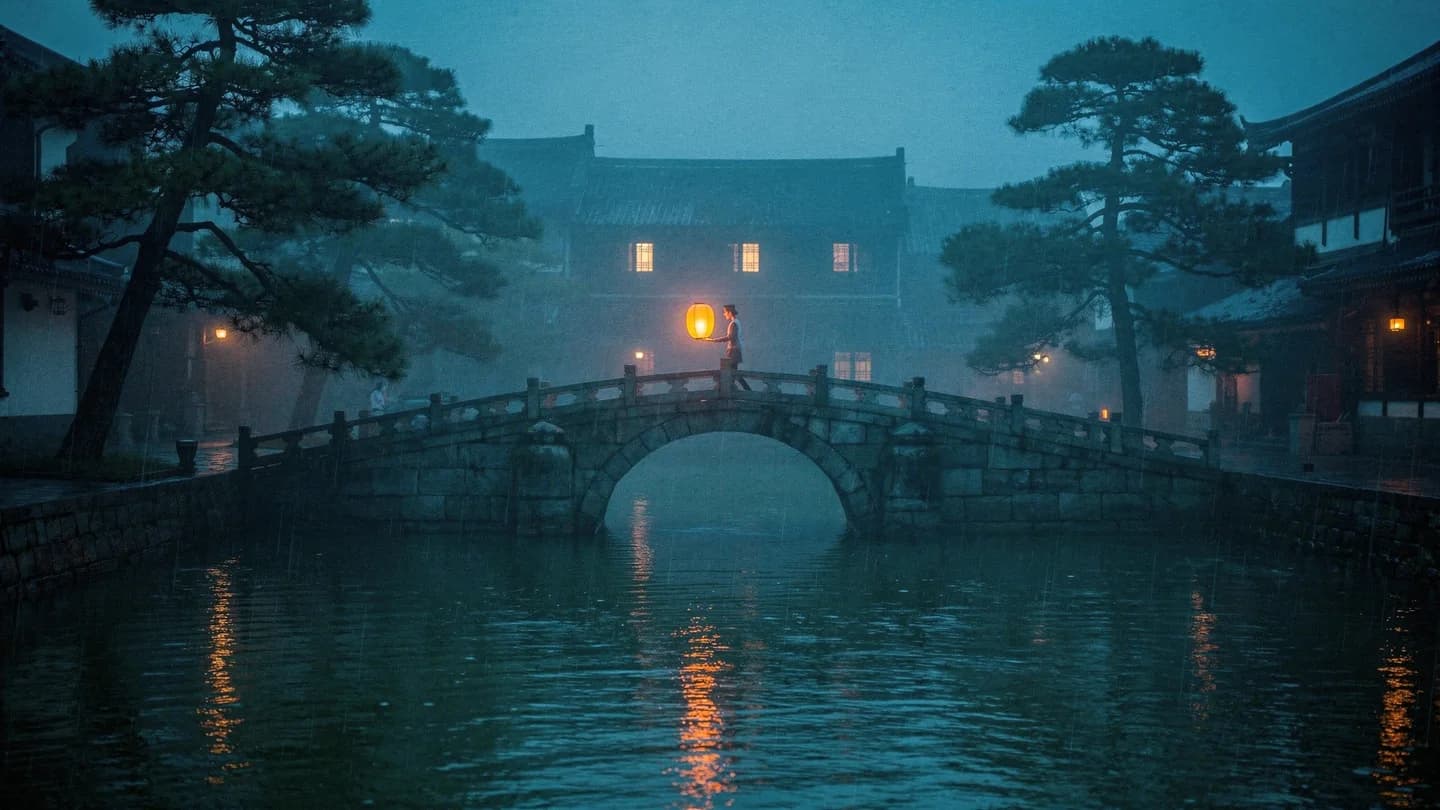
Figure holding an amber lantern on a rain-slicked bridge at twilight
1:1 original → 16:9 filled frame

Why AI fill

Four ways to remove black bars — why AI fill wins

Same vertical clip adapted to 16:9 widescreen: compare what happens to your subject, geometry, and frame edges.

  1. 01Loses ~68% of shot

    Zoom & Auto-Crop

    Fills 16:9 by discarding roughly two-thirds of the vertical picture.

    Cuts heads, hands, or subtitles · Only works on wide margins

  2. 02Warps proportions

    Stretch to Fit

    Removes black bars by distorting proportions across the whole clip.

    Pulls faces and circles sideways · Abstract visuals only

  3. 03Visible blur seams

    Blurred Sidebars

    Pads empty space with soft duplicated edges and visible seam lines.

    Full shot stays boxed in center · Quick placeholder reposts

  4. 04Full frame · AI filled

    AI Black Bar Fill

    Extends matching sky, walls, or scenery naturally all the way to the edge.

    Original pixels stay 100% intact · Native widescreen & vertical polish

5-second check

Player bars or baked-in bars?

Resize your video window once — you’ll know in seconds whether your file is already clean or has dark borders encoded into the pixels.

01Player-added bars

Bars move when you resize the player

Your file is already a clean 9:16, 4:3, or 16:9 clip — the player is only padding the screen around it. Upload it directly and pick a full-frame target ratio.

Upload clip · Pick ratio · AI fill

02Baked-in file bars

Bars stay locked inside the video pixels

Common in screen recordings, old 4:3 rips, and social re-exports. Our browser scan flags them on upload so you can trim in one click (up to 100 MB) before AI fill.

Auto-detect · 1-click trim · AI fill

How to remove black bars from video with AI

  1. 1. Upload your clip

    The tool checks the video for baked-in black bars. If it detects them, choose Trim black bars or Keep original.

  2. 2. Pick a full-frame ratio

    Choose 16:9, 9:16, 4:5, 1:1, or 21:9. Preview the placement and add a prompt if you want specific scenery.

  3. 3. Fill the frame and download

    Select Remove black bars. The job runs in the background. Download the MP4 with the original sound when it’s ready.

When to fill black bars in a video

TikTok, Reels & Shorts to YouTube

Reuse a vertical clip in a widescreen upload or compilation without losing the action.

Classic 4:3 camcorder and VHS clips

Give home movies and archive footage room on a modern display without stretching faces.

Cinema, screen recordings & AI renders

Adapt widescreen footage to a mobile feed or match Veo, Sora, and Kling clips to a common frame.

Why use AI Video Expander?

  • Try 10 seconds free

    Try one clip up to 10 seconds without signing in, and download it without a watermark.

  • Up to 180 seconds and built-in detection

    Expand a three-minute clip and check uploads for hardcoded borders before spending credits.

  • 1 credit per second and 30-day downloads

    Credit packs start at $9.90 for 240 credits and plans at $19.90/month. Completed videos stay in your account for 30 days.

Questions about removing black bars

How does the remove black bars from video AI tool work without cropping?

It uses video outpainting to generate new scenery beyond the original frame. The full picture stays visible instead of being zoomed to fill the canvas. If black borders are already part of the pixels, trim those borders first so AI can extend from the actual picture.

What is the difference between pillarbox and letterbox black bars?

Pillarbox bars sit on the left and right, usually when a tall or 4:3 video is shown on a wide screen. Letterbox bars sit at the top and bottom, usually when a wide video is shown in a taller frame.

What if black bars are baked into my video file (hardcoded borders)?

On upload, the browser samples frames across the clip to look for consistent dark borders. It can find bars on the sides, at the top and bottom, or around all four edges. Choose Trim black bars for files up to 100 MB or Keep original. Trimming removes border pixels and keeps your chosen output ratio. Subtle, colored, or changing borders may not be detected.

Is AI black bar fill better than blurred backgrounds or stretching?

Use AI fill when you want the surrounding scenery to look like an extension of the shot. Blur is a quick option when a neutral backdrop is enough. Stretching fills the frame, but changes proportions.

Can I use the remove black bars from video AI tool online for free without a watermark?

Yes. Try one clip up to 10 seconds online, without an account or a watermark. Longer clips use one credit per second.

Can I remove black bars from vertical iPhone, TikTok, or AI-generated videos?

Yes. Upload a playable export from your iPhone, TikTok, Veo, Sora, or Kling. Choose 16:9 to fill side margins, or switch to a taller ratio to extend above and below a widescreen shot.

Does removing black bars reduce video quality or affect original audio?

The original picture is not stretched, and the export keeps the clip’s timing and source audio. The MP4 is re-encoded for playback, so it isn’t a lossless copy. Output resolution depends on the source and selected ratio.

Which video formats, clip lengths, and output resolutions are supported?

Upload a playable MP4, MOV, WebM, or MKV up to 180 seconds and 300 MB. Browser trimming supports files up to 100 MB. The MP4 output is capped at a 1920-pixel long edge and a 1080-pixel short edge.