Expand AI-Generated Video to Widescreen Without Re-Prompting

Keep the character identity, camera move, and lip-sync from a great 9:16, 1:1, or 4:5 render. Expand AI-generated video to widescreen 16:9 or cinematic 21:9 online—compatible with exports from Sora, Kling, Runway, Veo, Luma, Pika, Hailuo, and Seedance.

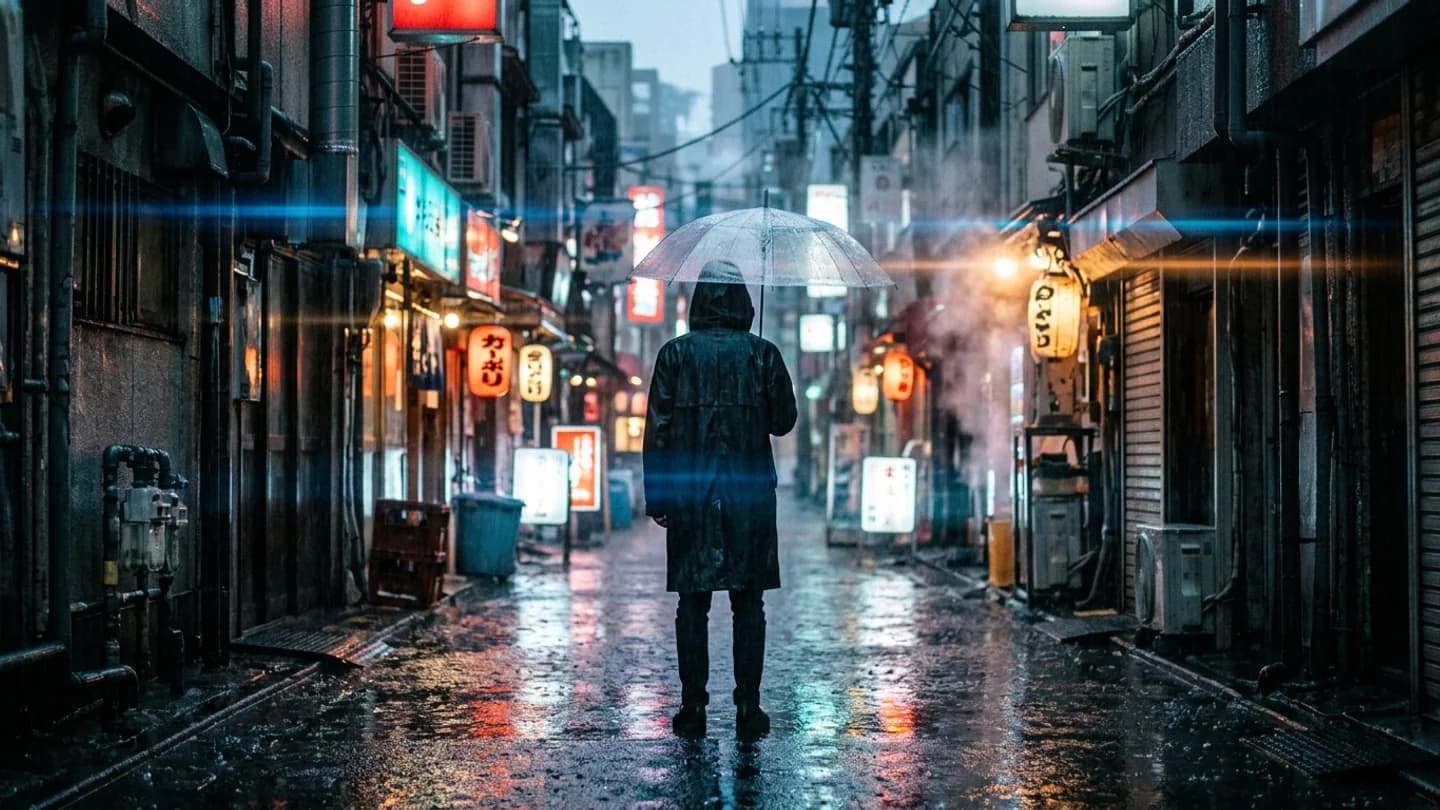
A lone hooded traveler holding a translucent umbrella in the center of a rain-slicked twilight Tokyo alley with neon reflections extending seamlessly across widescreen
9:16 → 16:9

16:9 for YouTube & widescreen · 21:9 for cinematic ultrawide · keep your original AI shot intact

Prompt (optional)

Best results come from single continuous shots without hard cuts. Describe only the new side scenery.

Take AI-generated video to widescreen without losing your best take

Expand AI-generated video to widescreen without re-prompting

Re-running a prompt in 16:9 almost always changes facial identity, hand physics, and camera timing. Expanding your finished render keeps the exact pixels of your lucky take locked inside the canvas. Turn a 9:16 or 1:1 image-to-video clip into a wide 16:9 or 21:9 frame without gambling extra generation credits on another roll.
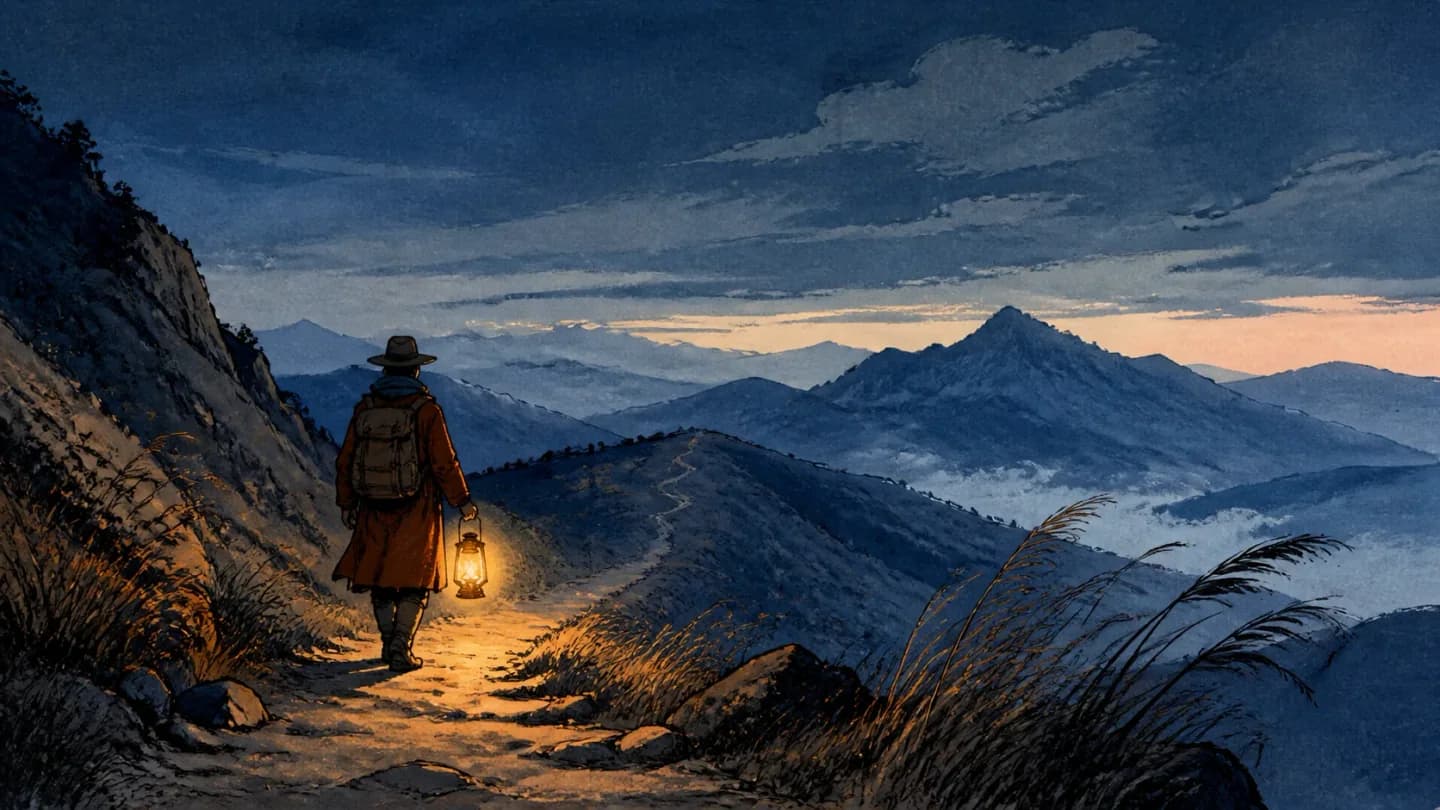
A cloaked traveler carrying a warm glowing lantern along a twilight mountain ridge with sweeping blue peaks extending wide across both sides
9:16 → 16:9

Match 2D anime, cel-shading, and photorealistic AI aesthetics

Whether your clip came from Sora, Kling, Runway, Veo, Luma, Pika, Hailuo, or Seedance, upload any standard MP4, MOV, WebM, or MKV export to widen your AI render to 16:9. Outpainting follows your clip’s line work, lighting palette, and atmospheric depth so 2D anime clouds, film grain, and cinema skies continue naturally across the widened edges.

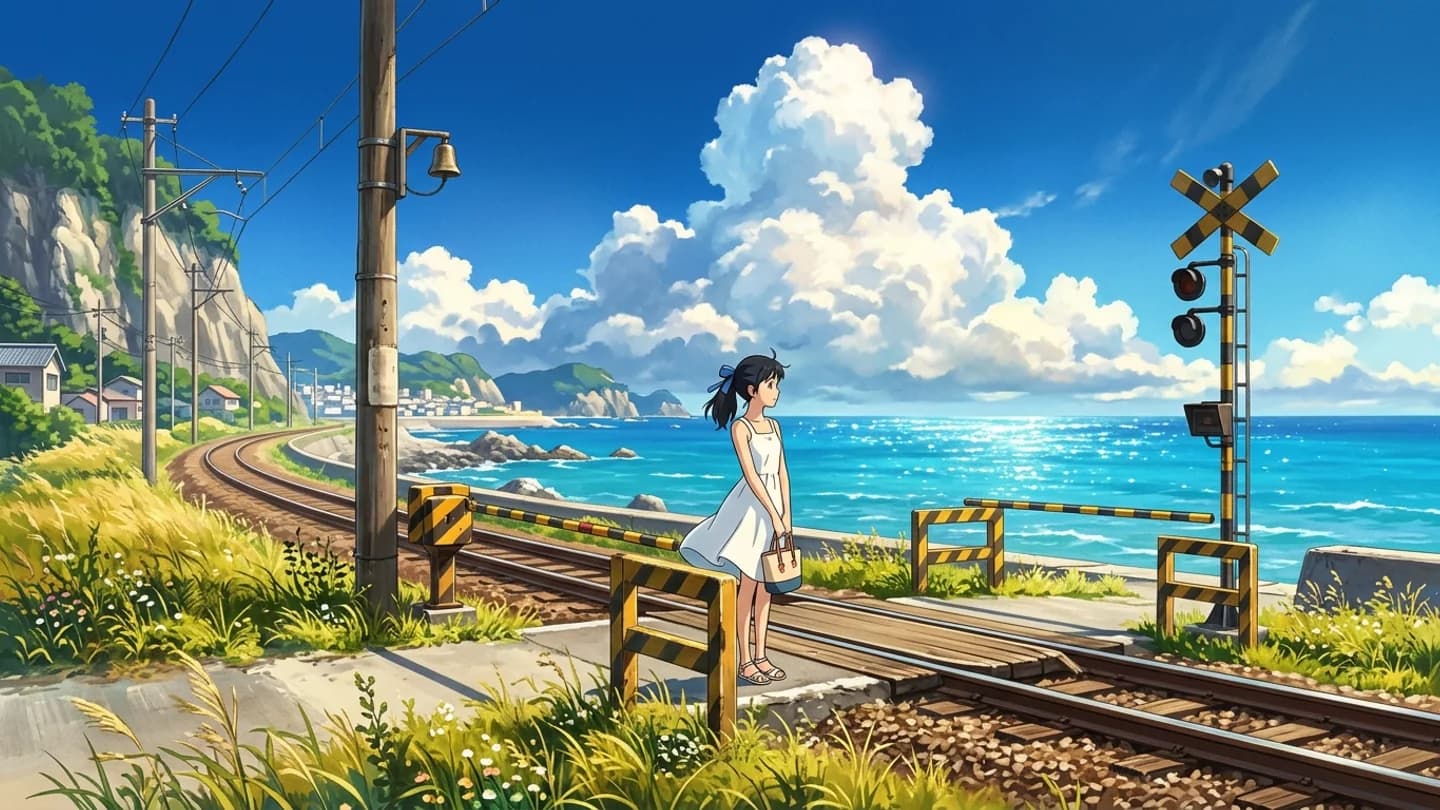
A 2D Japanese cel-shaded anime scene of a woman at a seaside railway crossing with painterly cumulus clouds and turquoise ocean continuing across widescreen
1:1 → 16:9

Compose stylized 3D scenes with 16:9 and 21:9 placement

Give AI short films intentional cinematic framing instead of dead-center crops. Place your subject on the left, center, or right of the canvas, or switch to the 21:9 ultrawide preset for a theater-style frame. Preview exact subject placement before expanding your AI clip into widescreen so negative space supports camera direction and story rhythm.

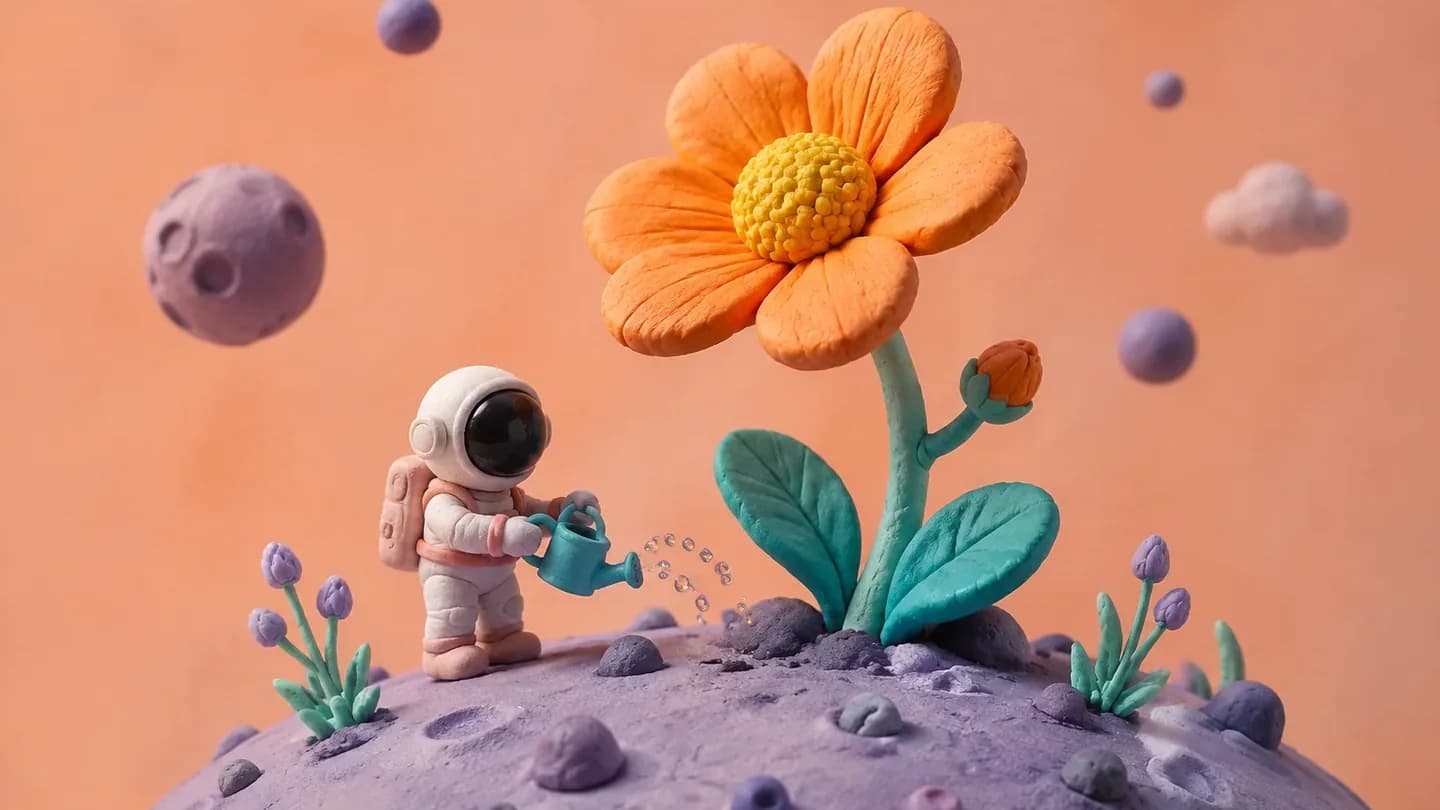
A miniature clay-animated astronaut watering an orange flower on a purple planet with soft peach studio scenery extending cleanly across widescreen
1:1 → 16:9

Preserve AI dialogue, lip-sync and original clip duration

Talking-avatar and lip-sync models often perform most reliably in tight portrait or square frames. Expand those clips to 16:9 while preserving original clip length and source audio when present. Your speaker’s mouth movement, voice track, and sound effects remain synced in the downloaded MP4 for YouTube, trailers, or pitch decks.

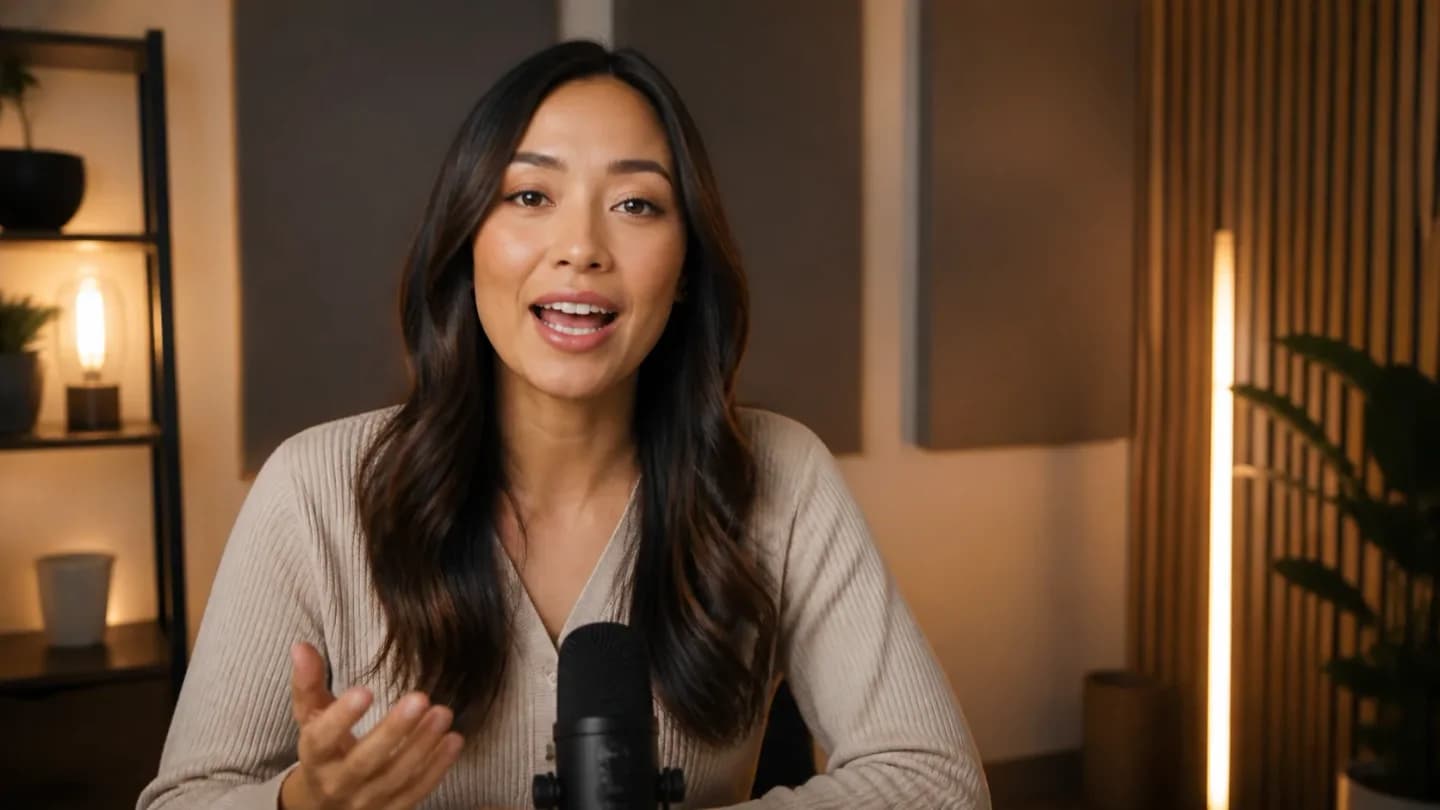
A studio presenter speaking into a broadcast microphone with warm acoustic wall panels and soft shelf lighting extending cleanly on both sides
4:5 → 16:9

Cleaner side seams on single-shot AI renders

Temporal flicker at the expansion boundary is the most common headache when widening AI footage. Upload a single continuous shot without hard scene cuts, keep fast-moving subjects clear of the border, and use the optional prompt strictly for outer surroundings. Review fine textures and moving margins across the full MP4 before cutting the shot into your sequence.

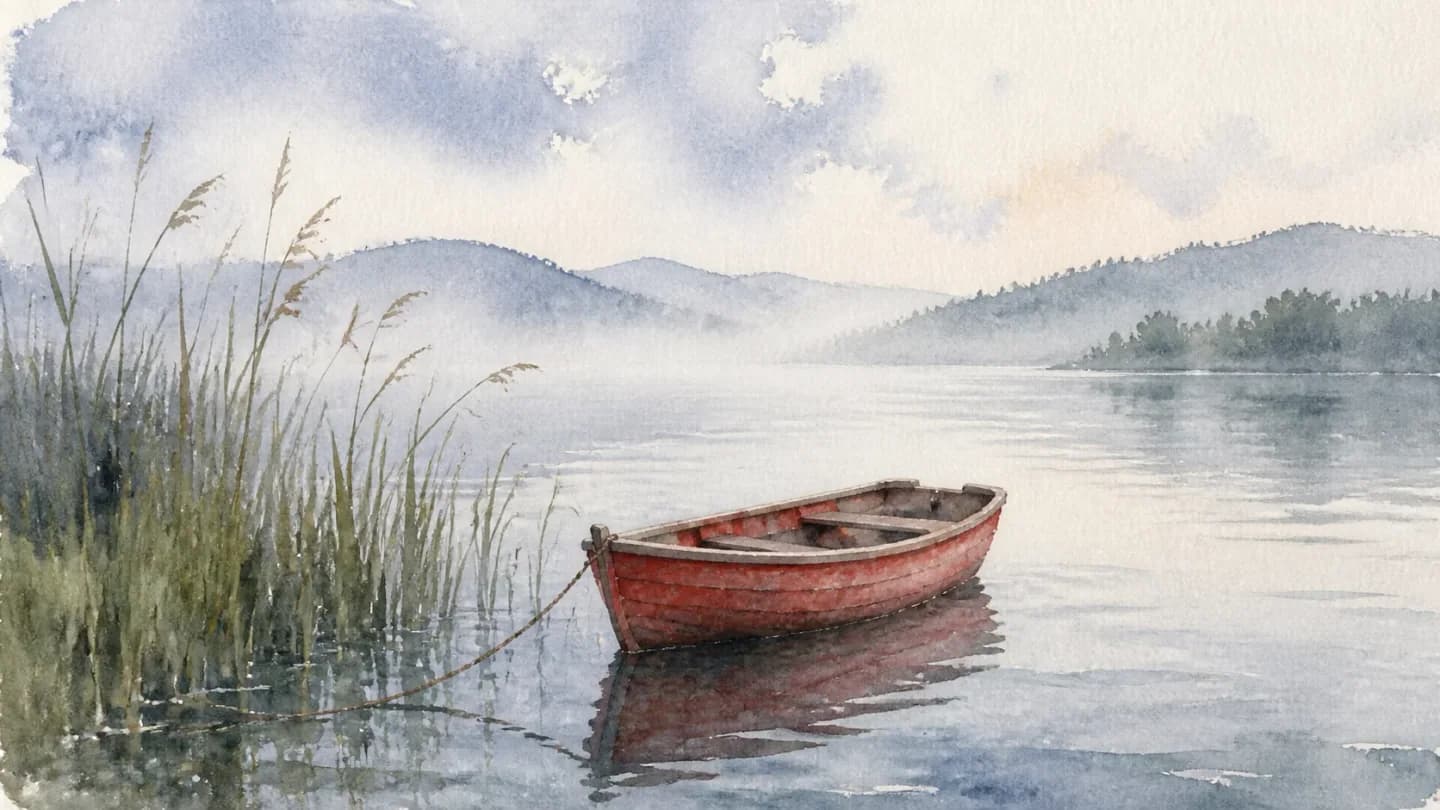
A painterly watercolor red rowboat resting on a misty mountain lake with a steady horizon and soft foliage extending evenly from edge to edge
1:1 → 16:9

Expanding AI-generated video to widescreen vs. re-prompting or cropping

Compare how creators move 9:16, 1:1, or 4:5 AI clips into 16:9 and 21:9 widescreen.

ApproachCharacter & motionFraming resultBest use
Re-prompt in 16:9Changes face, hand physics, and camera timingNative wide generation, but a different shotEarly exploration before locking a hero take
Crop or blur sidebarsCuts top/bottom or boxes clip in blurred sidesLoses vertical framing or breaks cinema feelTemporary rough cuts
AI video outpainting (16:9 / 21:9)Locks original pixels, timing, and lip-syncSeamless widescreen continuation on left/rightPromoting your best AI take to widescreen

How to expand AI-generated video to widescreen

  1. 1. Upload your AI clip

    Select an MP4, MOV, WebM, or MKV exported from Sora, Kling, Runway, Veo, Luma, Pika, Hailuo, or Seedance to preview widescreen framing right away.

  2. 2. Choose 16:9 or 21:9 framing

    Pick widescreen 16:9 or cinematic 21:9, choose left, center, or right placement, optionally pick a style prompt, and check credits.

  3. 3. Generate and download MP4

    Run AI widescreen expansion, inspect side continuity and audio, then download the MP4 for editing.

When to convert AI renders to 16:9 or 21:9

AI short films and trailers

Unify mixed 9:16, 1:1, and 16:9 AI shots into cohesive 16:9 YouTube or 21:9 cinematic timelines without re-rendering.

Image-to-video from vertical stills

Expand clips animated from 2:3, 4:5, or 9:16 Midjourney and Flux stills into full widescreen frames.

AI dialogue and lip-sync scenes

Widen tightly framed AI talking avatars and narrated explainers while keeping lip-sync and original voice tracks intact.

A faster widescreen workflow for AI filmmakers

  • Keep your exact winning take

    Expand AI-generated video to widescreen without losing character consistency, camera trajectory, or lucky generation details.

  • 16:9 and 21:9 with directional control

    Preview left, center, or right subject placement and optionally guide outer scenery right in your browser before spending credits.

  • Up to 180 seconds and original audio

    Handle short 5-second AI renders or stitched sequences up to 3 minutes, with background processing and 30-day downloads.

AI-generated video to widescreen FAQ

Why expand an AI-generated video to widescreen instead of re-prompting in 16:9?

AI video generators are stochastic—re-prompting in 16:9 generates a brand-new take with different character details, lighting, and motion timing. Expanding your finished clip keeps the exact original frame intact and adds matching scenery on the sides.

Does this work with clips from Sora, Kling, Runway, Veo, Luma, Pika, Hailuo, and Seedance?

Yes. Any standard MP4, MOV, WebM, or MKV export up to 180 seconds and 300 MB can be widened to 16:9 or 21:9 here, regardless of which AI video model created it.

Will expanding an AI clip to 16:9 break lip-sync or audio?

No. The output MP4 preserves the original clip duration and source audio track when present, keeping dialogue, AI voiceovers, and lip-sync aligned with the locked original frame.

Can AI outpainting match 2D anime, 3D animation, and cinematic photorealism?

Yes. The model extends colors, lighting, and rendering cues from your uploaded footage. Adding a short surroundings prompt—such as cel-shaded clouds or 3D studio lighting—helps keep stylized edges cohesive.

How do I minimize edge flicker or seams when widening an AI clip?

Upload single continuous shots without hard cuts, keep fast-moving subjects away from the expansion edge using left, center, or right placement, and describe only the outer environment in the optional prompt.

What is the difference between expanding to widescreen and extending video duration?

Widescreen outpainting expands the spatial canvas—widening a 9:16, 1:1, or 4:5 clip into 16:9 or 21:9—while keeping the original clip length. Temporal video extension adds extra seconds to the timeline instead.

Can I export 21:9 cinematic ultrawide as well as 16:9?

Yes. Select 16:9 for YouTube and standard widescreen (up to 1920 × 1080) or 21:9 for cinematic ultrawide (up to 1918 × 822 depending on source resolution). Actual output dimensions follow your source video.

Can I try widescreen AI video expansion for free?

Try one clip up to 10 seconds free with no account required. Generation costs 1 credit per second. Processing continues in the background and results stay available for 30 days.