
Uncrop Video with AI to Rescue Tight Interviews and Product Shots

Uncrop video online when a camera was set too close to a speaker or product. Use AI video zoom-out to add headroom, studio space, or clean margins without black bars, blurred borders, or warped faces. Preview the framing and export an MP4 with original audio.

A creative director speaking in a sunlit studio interview with natural headroom, birch bookshelves and indoor plants extending around the tighter original frame
1:1 → 1:1
Guide
20%

Match your original ratio for a 20%–100% zoom-out slider · or switch ratios to add directional margins

Prompt (optional)

Describe only the outer surroundings and lighting. Leave blank to uncrop video directly from the visible scene.

Uncrop video to fix tight interviews and product close-ups

Add headroom to tight interviews and talking heads

A remote interview, webcam recording, or podcast clip often leaves the speaker pressed against the top edge. Uncrop video with AI to expand the surrounding room, ceiling light, and background depth while keeping facial expressions and hand gestures completely untouched. Support for clips up to 180 seconds lets you fix full interview answers rather than 10-second snippets.
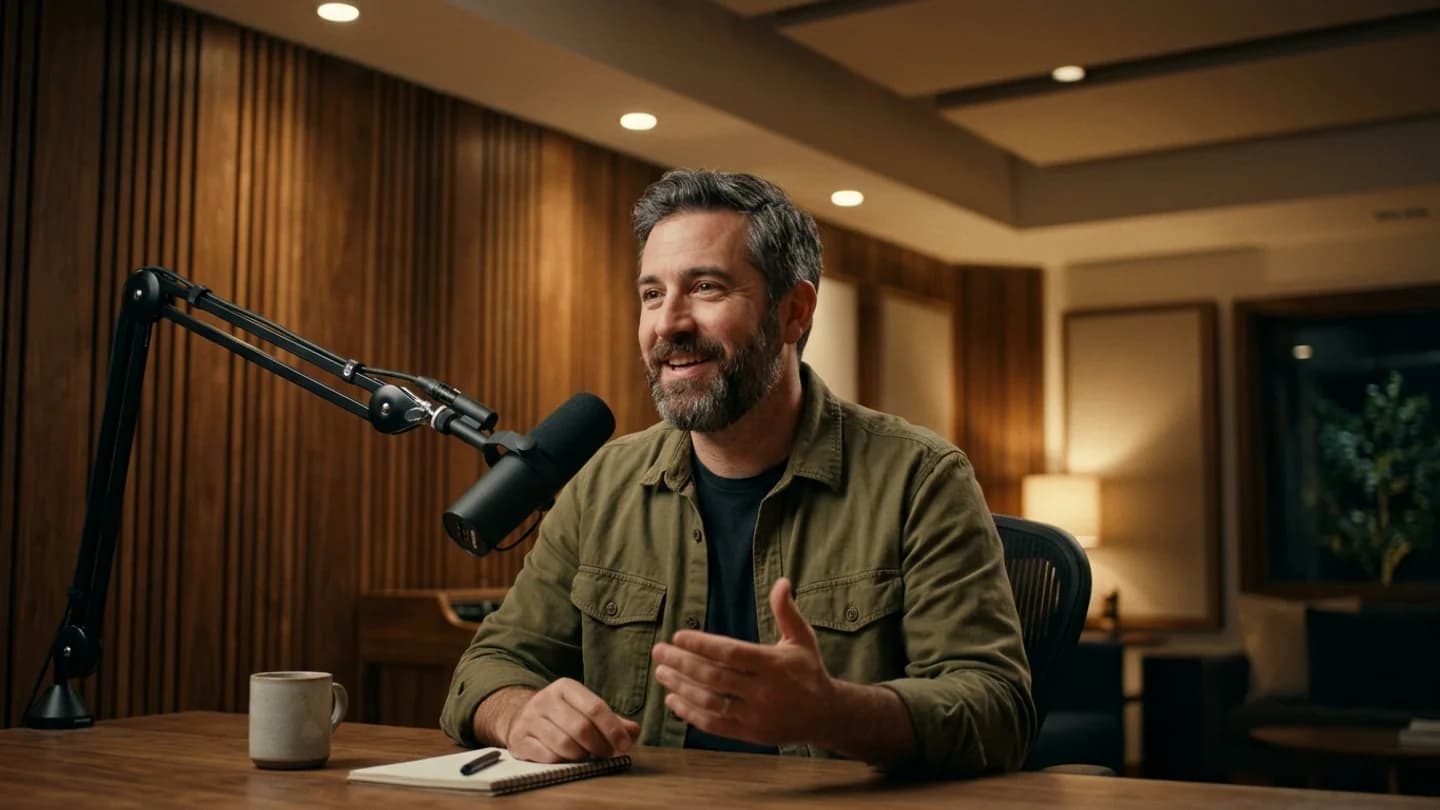
A bearded designer speaking near a matte-black podcast microphone in a walnut acoustic studio with comfortable overhead headroom
16:9 → 16:9

Zoom out product close-ups without warping labels or packaging

Close-up product demos and handheld UGC shots frequently crowd the frame. Uncrop video with the 20%–100% same-ratio slider to step back gradually while keeping original interior pixels locked. Bottles, hands, and packaging inside your source shot stay unstretched while AI extends matching tabletop texture and studio shadows around the borders.

An unbranded frosted amber glass dropper bottle held over honed travertine and oatmeal linen with generous surrounding tabletop margins
1:1 → 1:1

Uncrop video for lower thirds, pricing and ad copy space

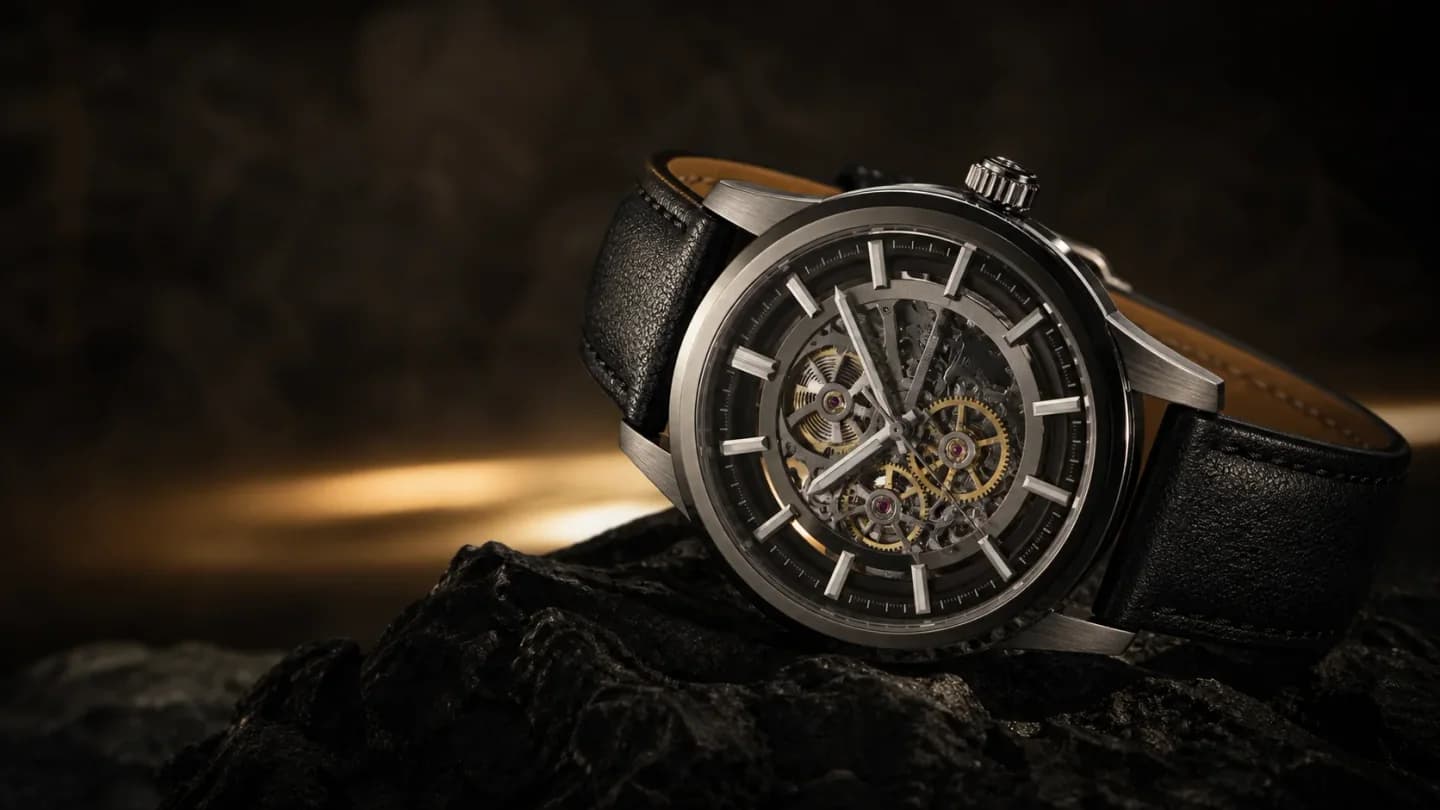
Move a tight product demo or interview subject off-center to make room for titles without covering the subject. Switch to a wider or taller ratio and extend left, right, above, or below to create clean negative space. Turn on the thirds and headroom guide in the preview to check balance before you uncrop video, then apply crisp logos, lower thirds, or ad headlines in your usual editor.

A brushed steel skeleton watch placed on the right third over dark volcanic stone with clean moody negative space extending to the left
1:1 → 16:9

Keep lip-sync, voice clarity and original clip duration

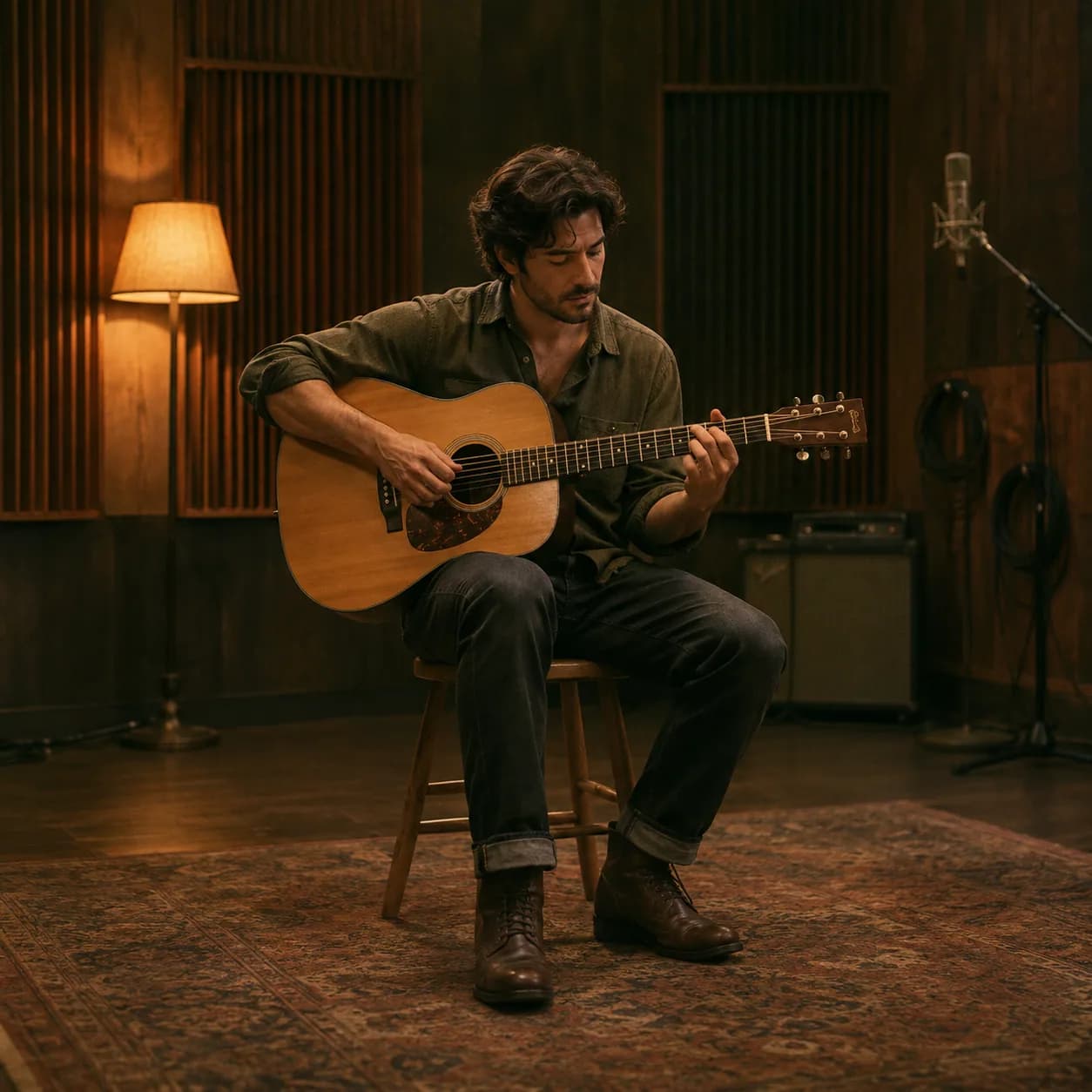
Spoken interviews and live demonstrations depend on exact timing. When you uncrop video here, the output MP4 preserves the original clip length and source audio track when present. Review lip-sync, voice audio, and newly generated room edges together before dropping the expanded clip back into Premiere Pro, DaVinci Resolve, or CapCut.

An acoustic guitarist performing in a warm recording room with the whole guitar visible and natural space around the musician
1:1 → 1:1

Guide expanded studio walls and tabletop surfaces with a prompt

An optional scene prompt helps align the newly expanded borders with your set. Describe soft office bokeh, a stone tabletop, or open coastal light that matches what is already visible. You can also leave the prompt blank and let AI zoom out automatically from existing color, focus falloff, and lighting direction.

An atmospheric coastline with a small sailboat, luminous sea and open sky extending beyond the original frame
16:9 → 16:9

Get cleaner borders on interviews and tabletop demos

Static tripod shots, steady studio lighting, and subjects kept clear of the cut edge produce the most convincing results when you uncrop video. Start with a moderate 20%–40% expansion on close talking heads before trying wider pull-backs. If a face or label is already sliced at the border, inspect the outer edges carefully across motion before publishing.

A sunlit sparkling citrus drink pour on a marble cafe counter captured from a steady tripod angle with clean surrounding room light
16:9 → 16:9

Uncrop video with AI vs. blurred borders and editor crops

Compare how each method handles a tightly framed interview or product close-up.

MethodOriginal subjectAdded margin lookBest for
Zoom & cropCuts even closer into heads, hands, or packagingNone—removes existing frame areaRemoving unwanted edge clutter
Black or blurred barsPreserved, but boxed inside visible seamsFlat bars or distracting mirrored blurQuick placeholder exports
AI uncrop videoInterior pixels stay intact and unstretchedContinuous studio, room, or tabletop sceneryTight interviews, talking heads & product close-ups

How to uncrop video with AI

  1. 1. Upload your tight clip

    Select a playable MP4, MOV, WebM, or MKV up to 180 seconds and 300 MB from desktop or mobile to preview framing right away.

  2. 2. Set zoom-out or margins

    Keep your original ratio for the 20%–100% zoom-out slider or pick a new canvas. Toggle the thirds guide, optionally describe the backdrop, and check credits.

  3. 3. Generate and download MP4

    Start generation to uncrop video, inspect faces, labels, and moving edges, then download your MP4 with original audio.

Where to uncrop video for cleaner framing

Interviews, podcasts and webcams

Add headroom and studio depth to talking heads filmed too close, with room for lower-third name titles.

E-commerce and UGC product close-ups

Step back around tight tabletop or handheld product demos so packaging, hands, and surrounding surfaces breathe naturally.

Ad creatives and campaign overlays

Offset your subject and uncrop video to create clean negative space for headlines, pricing callouts, and platform safe zones.

Why uncrop video in this workspace

  • Up to 180 seconds per clip

    Uncrop video for complete interview answers and full product walkthroughs up to 3 minutes and 300 MB—far beyond 10-second clips.

  • Same-ratio 20%–100% zoom-out

    Step back inside your existing aspect ratio or add directional space on one side, with thirds and headroom preview guides.

  • Transparent credits and 30-day access

    See exact duration-based credit estimates before you uncrop video. Processing continues in the background and downloads stay ready for 30 days.

Questions about how to uncrop video

Can I recover original cropped footage, or does AI uncrop video by generating new scenery?

If you cropped a clip inside iPhone Photos, CapCut, or Premiere Pro without exporting over the master, use Revert or Undo in that editor to restore the recorded pixels. Once a video is already exported or filmed too close, AI uncrop video generates a plausible continuation outside the visible borders while keeping your recorded frame intact.

Will AI uncrop video distort faces, lip-sync, or product labels?

Your original interior pixels stay locked inside the canvas, so faces, expressions, and product packaging inside the source frame remain unstretched. If part of a face or logo is already cut off at the border, AI has to imagine the missing edge—keep critical text and faces clear of the cut line and review the result before publishing.

How do I add headroom to a tightly framed interview or talking-head video?

Upload your interview clip and either keep the matching ratio with a 20%–40% zoom-out slider to open all four sides evenly, or switch to a taller canvas and choose upward expansion to place space specifically above the speaker. Toggle the thirds and headroom guide to check eye-line placement first.

Can I uncrop video without changing its aspect ratio?

Yes. When your source matches 9:16, 4:5, 1:1, or 16:9, selecting that same ratio reveals the 20%–100% expansion slider to zoom out evenly on all sides. Other source proportions can expand into any of those four target ratios.

Can I uncrop video on iPhone or mobile browsers?

Yes. Open the page in Safari or Chrome on iPhone or Android and select a playable video directly from your camera roll. Adjust framing, start generation, and return to the same account to download your MP4.

Which file formats, clip lengths, and output sizes work?

Upload playable MP4, MOV, WebM, or MKV files up to 180 seconds and 300 MB. Output is an MP4 scaled to your source resolution and chosen ratio, up to a 1080-pixel short edge and 1920-pixel long edge.

Does uncropping a video keep the original audio and length?

Yes. When you uncrop video, the output MP4 keeps the exact source duration and original audio track when present, preserving interview voice sync and product demo sound.

Can I try to uncrop video for free?

Try one clip up to 10 seconds free with no account required. Generation costs 1 credit per second. Monthly and yearly plans provide additional credits.

Can I leave the page while my video processes?

Yes. Processing continues in the background after you close the tab. Each account supports one pending or processing video task at a time, and uploaded files and completed results remain available for 30 days.

Uncrop video and give tight shots room to breathe

Rescue close interviews and product demos with AI zoom-out, preview headroom and margins, and export a clean MP4 with original audio.

Uncrop my video