AI Video Outpainting to Expand the Scene Beyond Your Frame

Give a finished clip more of its surroundings. AI video outpainting generates scene area beyond the original frame. Upload your footage, choose a canvas and decide where the new space belongs, then review and download your expanded MP4.

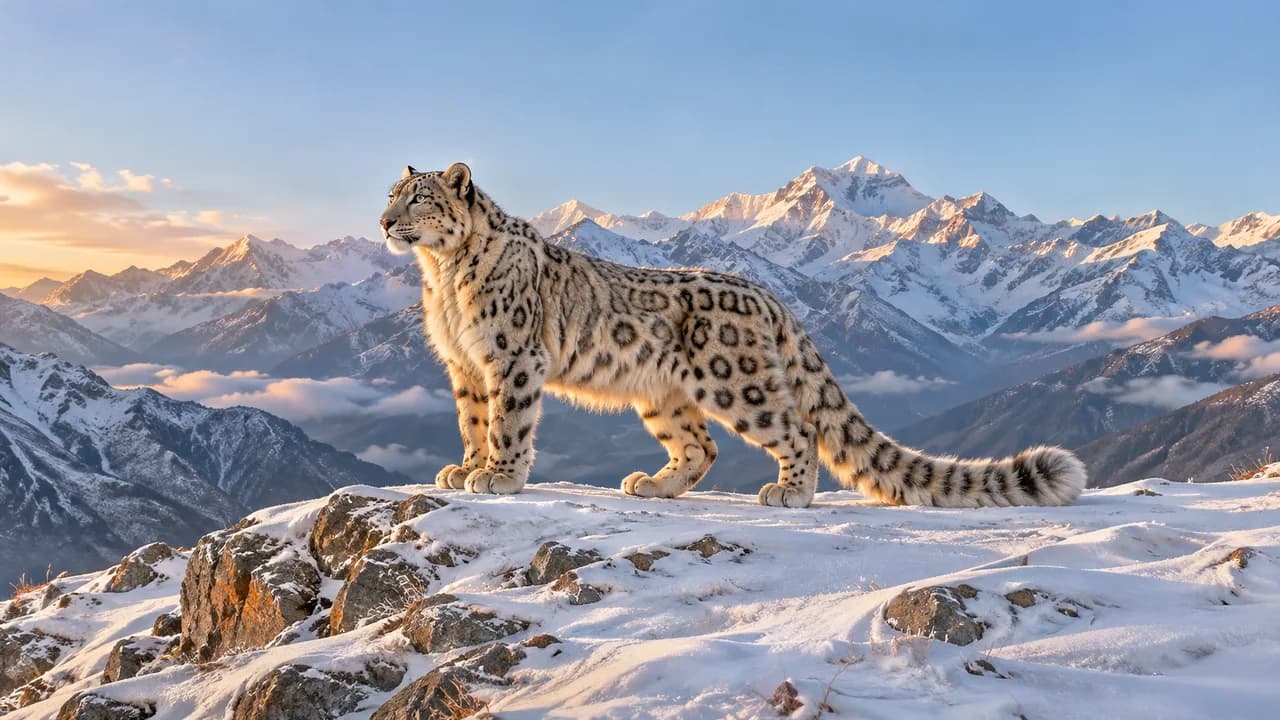
A snow leopard on a snowy ridge surrounded by Himalayan peaks in warm dawn light
1:1 → 16:9
Prompt (optional)

Leave blank to expand from your video.

Explore more of the scene with AI video outpainting

Let the environment continue beyond the frame

A close composition can leave little room for the setting. Video outpainting creates surroundings that continue from the visible scene, opening up a coastline, a landscape or an interior. Keep your source shot in view while giving the moment a wider sense of place. Inspect the new details across the finished clip.
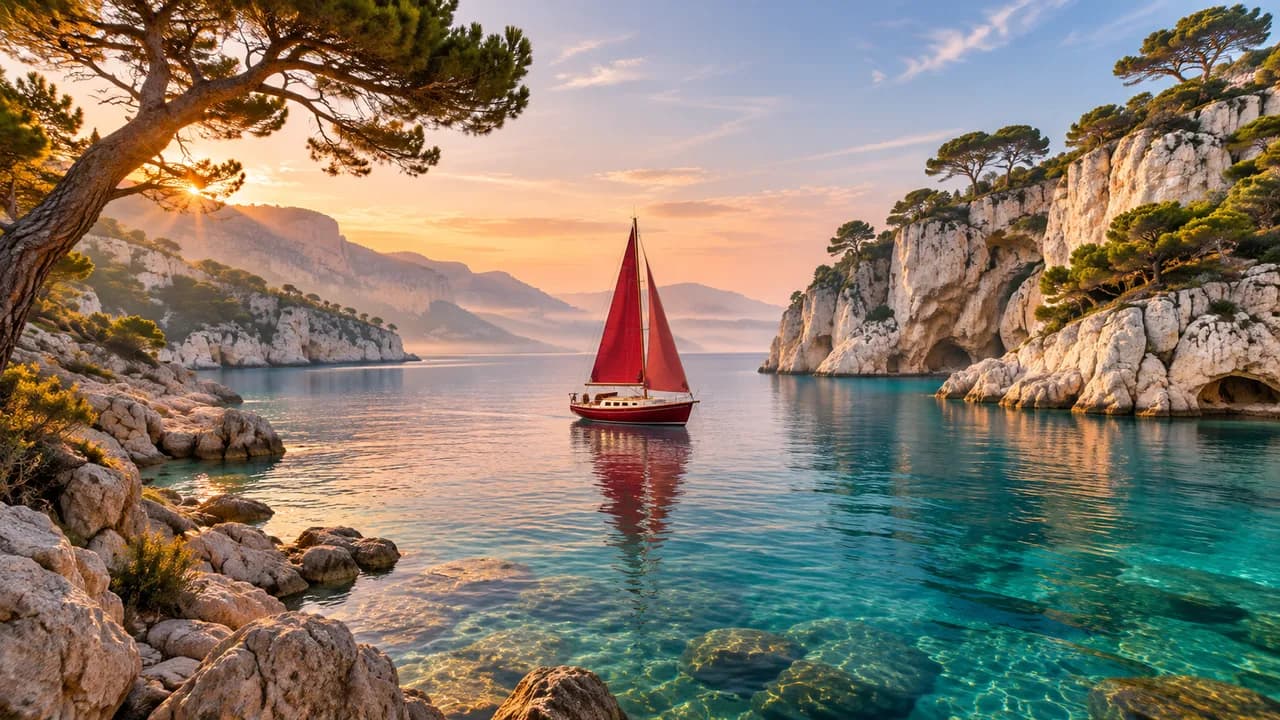
Fine-art coastal landscape with a central red sailboat and continuous scenery on both sides
9:16 → 16:9

Decide where the additional scene appears

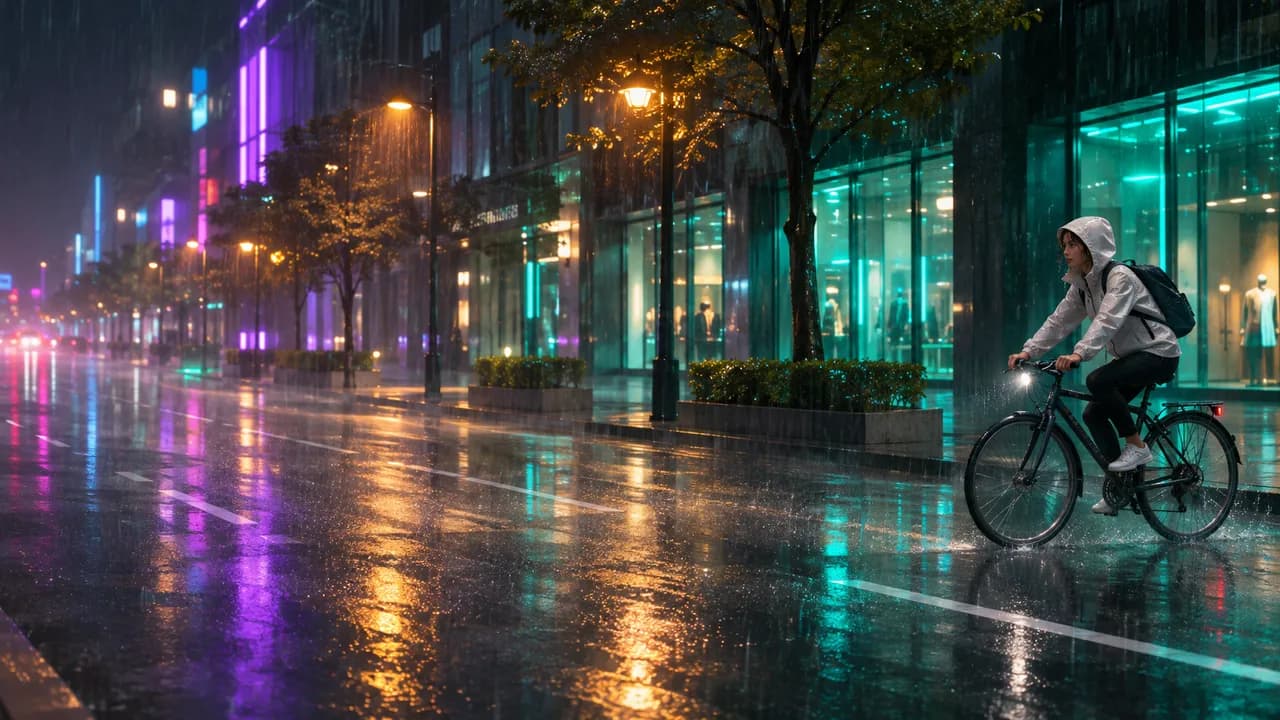
Use video outpainting to add space beside the action or above and below it. Preview left, right or balanced expansion when widening the canvas, with upward and downward options for taller layouts. Place your original footage where it supports the composition, then generate the additional scene around that fixed position.

Cinematic neon-lit rainy city street with a lone cyclist placed toward the right of the widescreen scene
9:16 → 16:9

Give existing footage a new publishing canvas

Outpaint video for a vertical social post, a square feed placement or a wider website visual. Choose 9:16, 4:5, 1:1 or 16:9 and let video outpainting fill the added space. The complete source composition remains visible while the surrounding environment adapts to your selected canvas. Prepare each version around its destination.

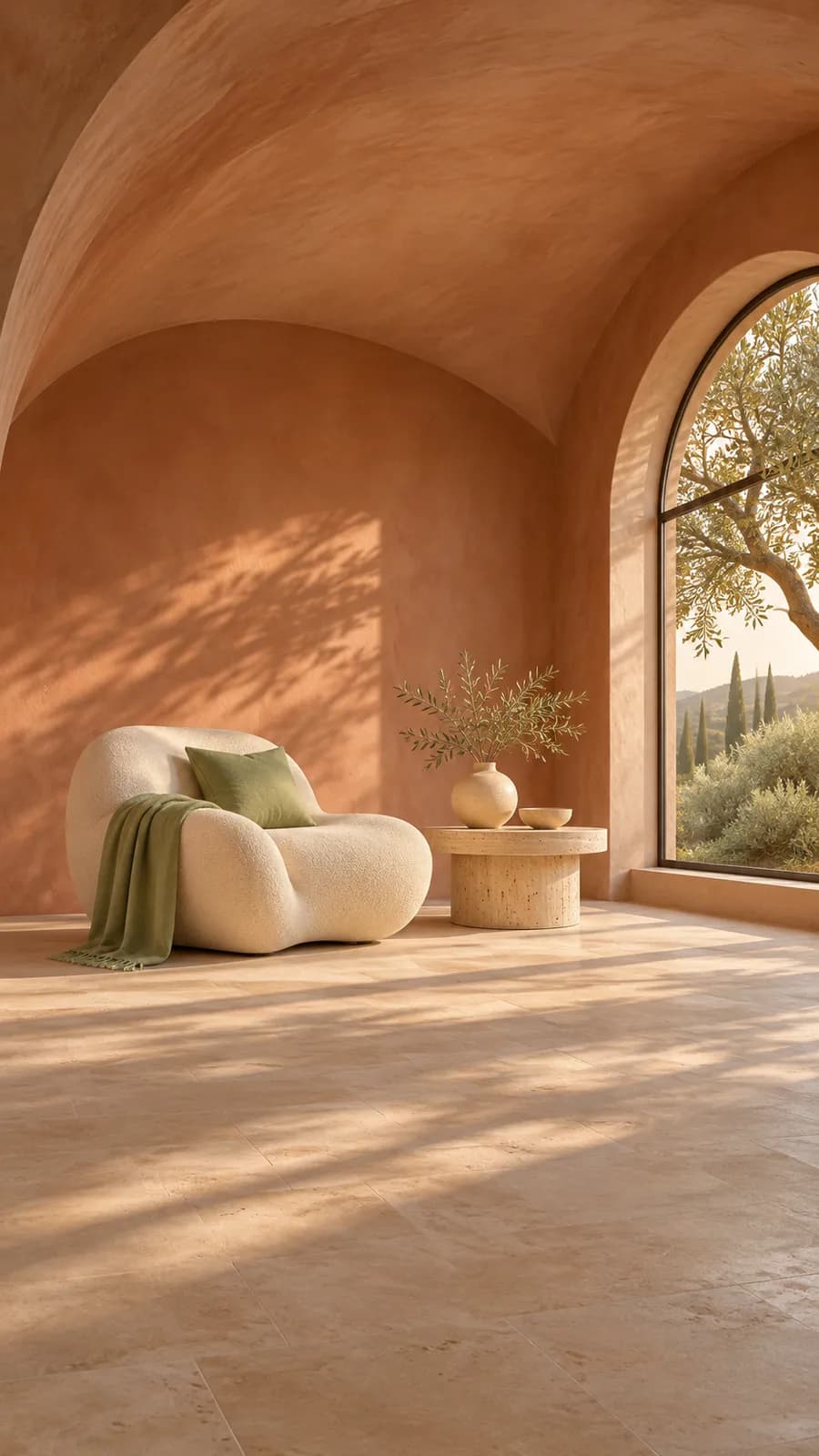
Art-directed vertical interior with a sculptural chair in the middle and generous sunlit architecture above and below
1:1 → 9:16

Guide the environment with a few words

An optional scene description helps express what you want around the source. Suggest a soft studio wall, more sky or an open garden consistent with your footage. You can also leave it blank and start video outpainting from the visible scene. Keep the description focused on the surrounding environment, then check the result.

Unbranded amber glass bottle on pale stone with soft botanical shadows and open studio space
1:1 → 4:5

Carry the original moment into the wider scene

AI video outpainting preserves the source duration and restores its audio when present. Keep a performance, an animated moment or a demonstration on its original timeline. Download the finished MP4 and continue in your preferred editor. Review motion and generated edges through the whole clip before selecting the version to publish.

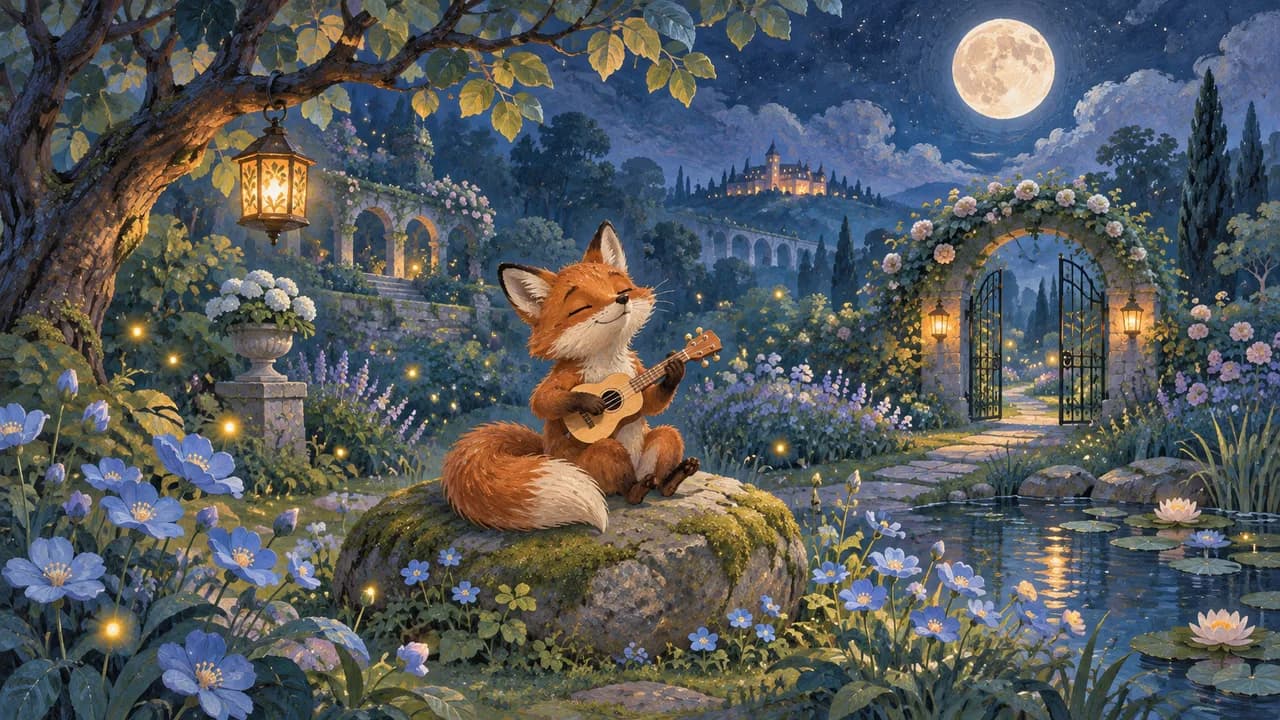
Painterly animated fox playing a small string instrument in an expansive moonlit garden
1:1 → 16:9

How to use video outpainting

  1. 1. Upload your clip

    Select a playable video to preview framing right away. Start video outpainting with footage that clearly shows the subject and its surroundings.

  2. 2. Choose the framing

    Set the canvas and expansion direction. Preview placement, optionally describe the environment and check the credit estimate.

  3. 3. Generate and download

    Start video outpainting, inspect the additional scenery and download the MP4. Your task keeps processing after you leave the page.

Video outpainting for your next creative task

Travel and landscape clips

Use video outpainting to open up the setting around a captured moment, giving a phone clip more environmental context for a wider screen.

Product campaigns

Expand video background space around a demonstration or product close-up. Add your final headline or branding in your editor after download.

Animation and visual stories

Explore video outpainting for an existing animated scene, keeping its source composition together while generating more of the imagined setting.

Your online video outpainting workspace

  • Open in your browser

    Outpaint video online on desktop or mobile, with upload, framing controls and available downloads in one workspace.

  • See the estimate first

    Check the estimated credits before starting video outpainting. Clip duration determines the processing cost.

  • Return to your result

    Leave the page while your task processes, then return to the same account for progress and downloads.

Video outpainting questions

What does AI video outpainting generate?

AI video outpainting generates additional scenery outside your source frame. The added details are an imagined continuation of the visible environment. The original video remains the foundation of the composition.

Does video outpainting change the clip duration?

Video outpainting expands the spatial frame while keeping the original duration. The finished MP4 also includes source audio when your uploaded clip has an audio track.

Can I expand all sides at the original ratio?

When your source matches 9:16, 4:5, 1:1 or 16:9, choose that same ratio to reveal the 20%–100% expansion slider. Other source shapes can be adapted to one of these four presets.

Do I need a prompt or software installation?

Use video outpainting directly in your desktop or mobile browser. A scene description is optional. Leave it blank to start from your footage, or briefly describe surroundings consistent with the existing scene.

Which files can I upload for video outpainting?

Upload a playable MP4, MOV, WebM or MKV up to 180 seconds and 300 MB. Each account supports one pending or processing video task at a time.

What resolution will the finished video have?

Video outpainting outputs an MP4 based on your source resolution and chosen ratio, up to a 1080-pixel short edge and 1920-pixel long edge. Review fine textures, complex backgrounds and fast movement in the result.

Can I try video outpainting free?

Try one clip up to 10 seconds free with no account required. Video outpainting costs 1 credit per second. Monthly and yearly plans provide additional credits.

How long can I access my result?

Files and video outpainting results remain available for 30 days. Processing continues after you leave the page. Return to your account to check progress and download your finished clip.

Take your next scene further with video outpainting

Upload a clip, choose where the new surroundings belong and explore video outpainting with your own footage.

Outpaint my video