Convert Vertical Video to Landscape for Long-Form YouTube

Turn your TikToks, Instagram Reels, and Shorts into full-length YouTube edits. Choose a landscape layout that leaves room for titles and captions, preview where the YouTube player and end screens will appear, and export a 1080p MP4 with the original audio.

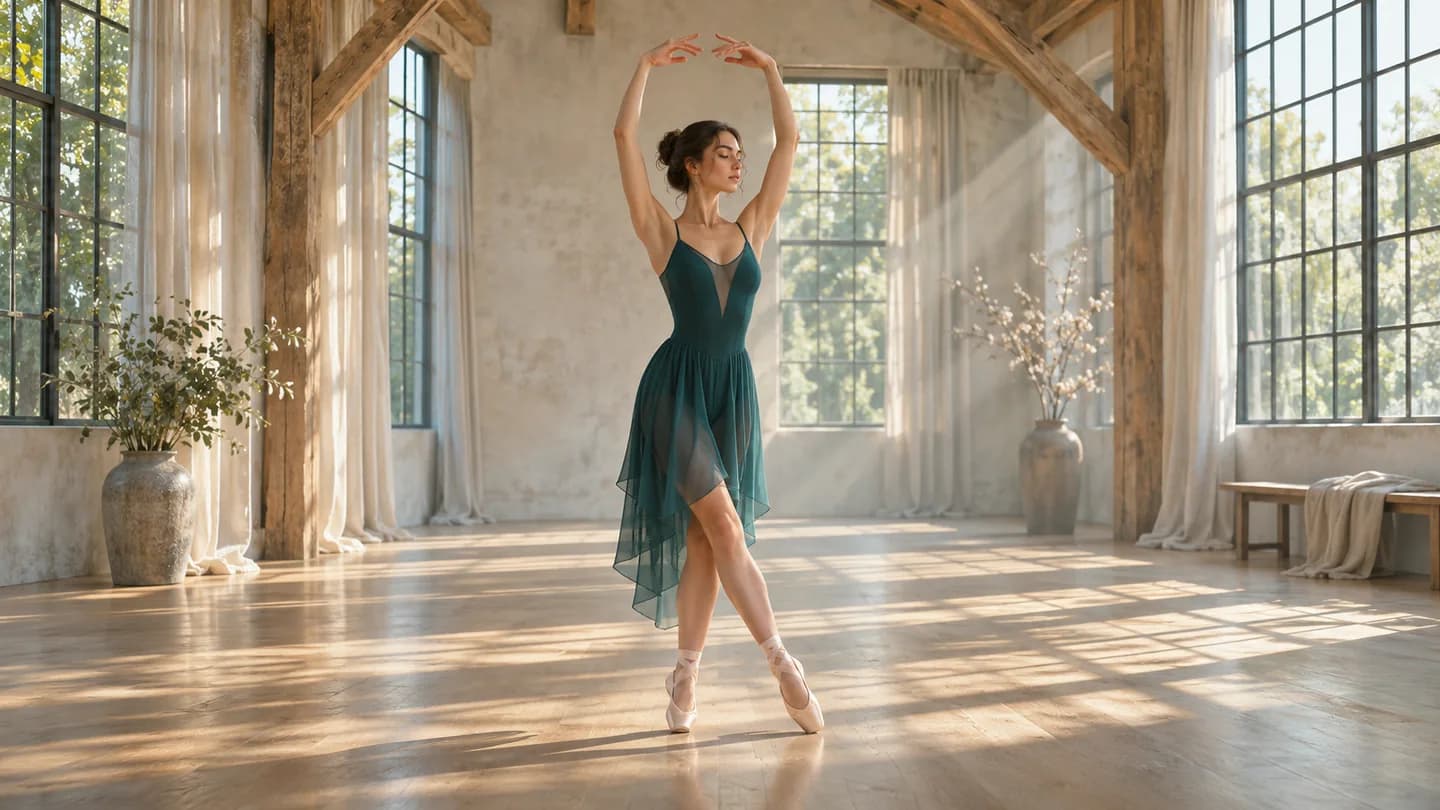
A full-length ballet dancer with raised arms centered in a bright art loft with tall windows and spacious architecture extending on both sides
9:16 → 16:9
Guide

9:16 TikTok, Reels & Shorts → 16:9 YouTube · drag or pick left, center, or right placement

Prompt (optional)

Upload a clean unwatermarked 9:16 master without burned-in TikTok captions when possible.

Convert vertical video to landscape with YouTube-ready composition

Vertical video to landscape without 68% cropping or blurred bars

A 9:16 clip fills only about 32% of a 16:9 widescreen width. Zooming to fill slices off roughly 68% of the vertical shot, while blurred sidebars immediately signal a reposted phone clip. Convert vertical video to landscape with AI outpainting so heads, hands, and full-body movement stay intact inside naturally extended surroundings.
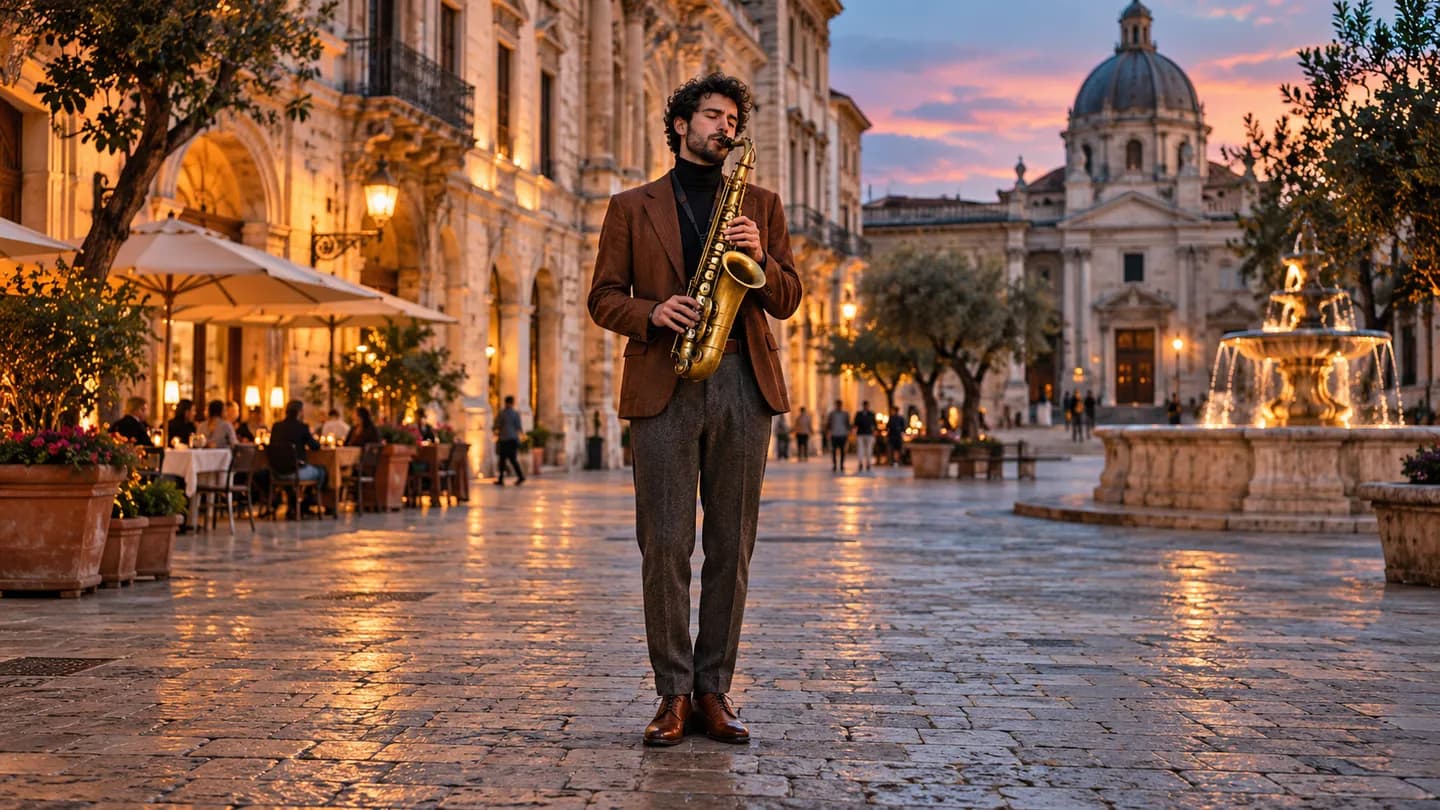
A street saxophonist framed from head to toe in the center with a spacious city square continuing naturally on both sides
9:16 → 16:9

Choose left, center, or right framing for TikTok to YouTube edits

Different YouTube videos call for different 16:9 compositions. Center your 9:16 footage for vlogs, travel, and performances, or shift a talking-head TikTok to the left or right third to open clean background space for chapter titles, bullet points, or product B-roll. Preview your 9:16 to 16:9 placement directly on the canvas before generating.

A lifestyle creator seated by a sunlit cafe window on the left third with warm blurred bookshelves and interior depth extending to the right
9:16 → 16:9

Check YouTube 16:9 safe zones before you generate

Toggle the YouTube safe-zone guide right inside the preview to verify key visual clearance before expanding your portrait clip to 16:9. Keep critical details above the bottom 10% player scrubber and 15% native Closed Captions band. Switch to the End Screens guide to check whether clickable video cards in the final 5–20 seconds will overlap your subject.

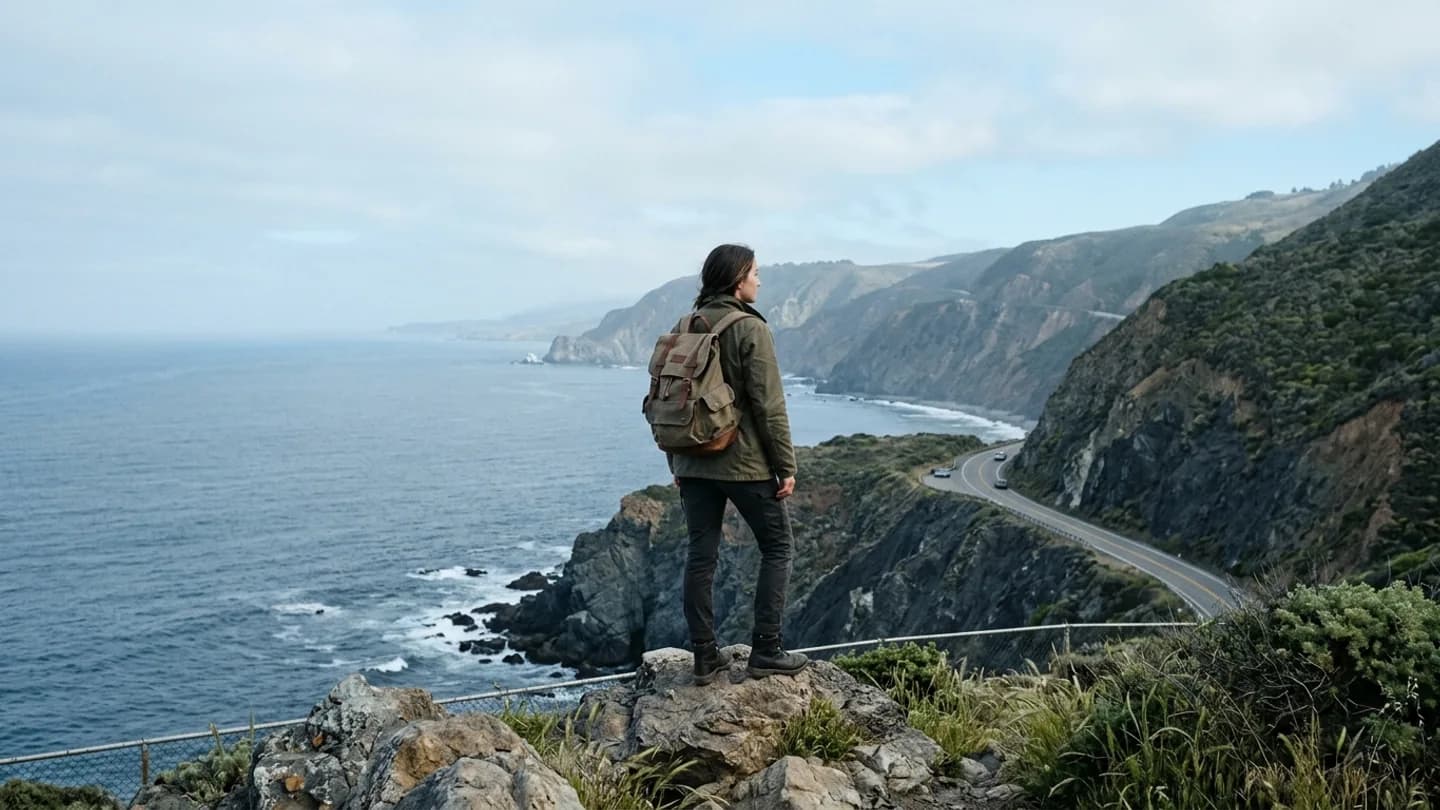
A coastal highway traveler centered on a scenic Pacific cliff overlook with open sky, ocean and rocky margin clearing YouTube safe zones
9:16 → 16:9

Avoid burned-in TikTok captions and add clean 16:9 graphics

Exported TikToks and Reels often carry platform watermarks or tightly stacked vertical captions that clash with YouTube controls. Start from your clean unwatermarked vertical master whenever available. Expand your 9:16 footage with room on one side or across the lower safe band, then apply sharp 16:9 subtitles, logos, and callouts in your video editor.

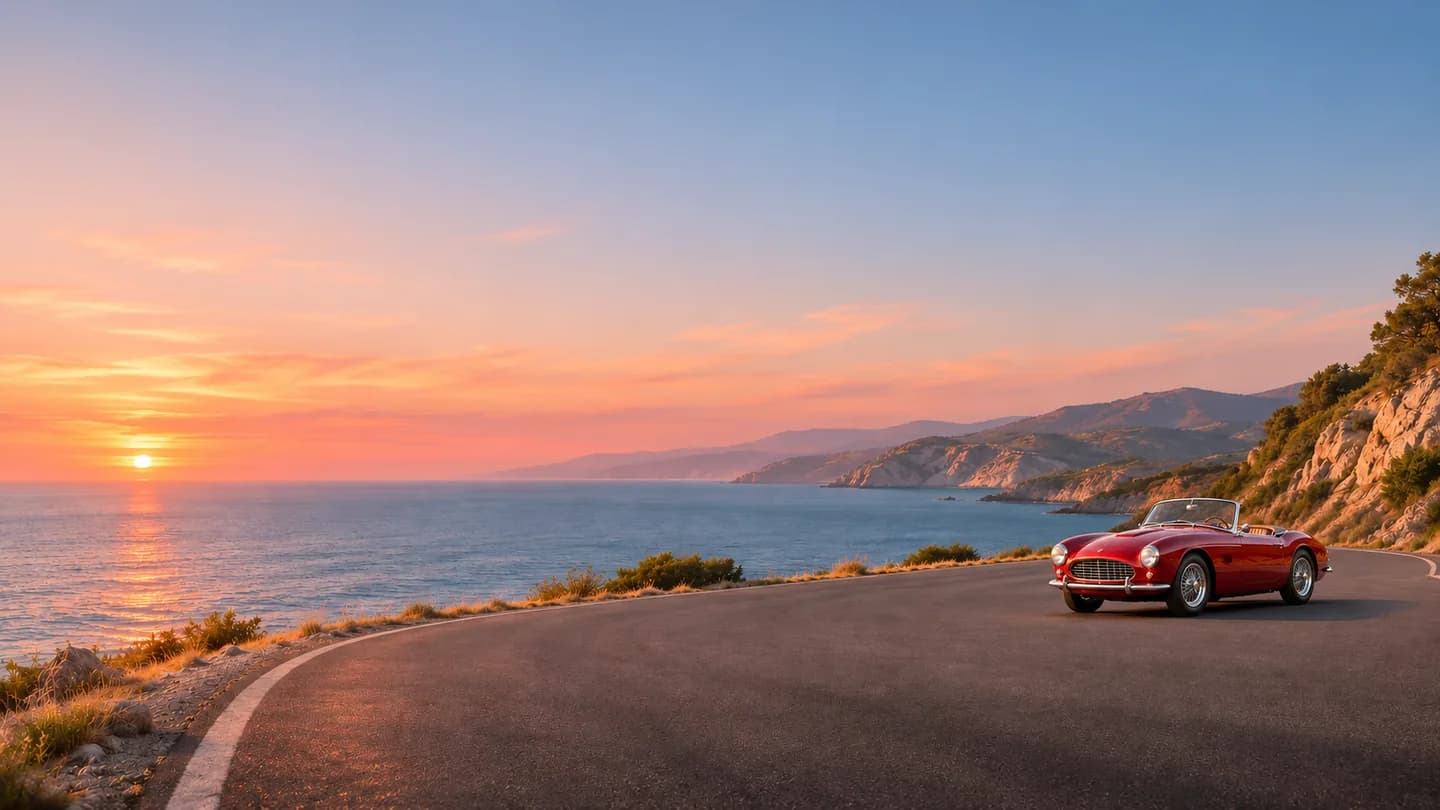
A vintage red roadster placed on the far right of an open coastal road with quiet sea and sky leaving clean space on the left for widescreen titles
9:16 → 16:9

Keep original sound, pacing and 1080p YouTube quality

Every beat-synced edit or spoken hook keeps its exact timing when you widen a portrait clip into horizontal 16:9. The exported MP4 retains source duration and original audio when present, scaling up to 1920 × 1080 pixels. Inspect picture, moving side edges, and soundtrack together before dropping the clip into your YouTube sequence.

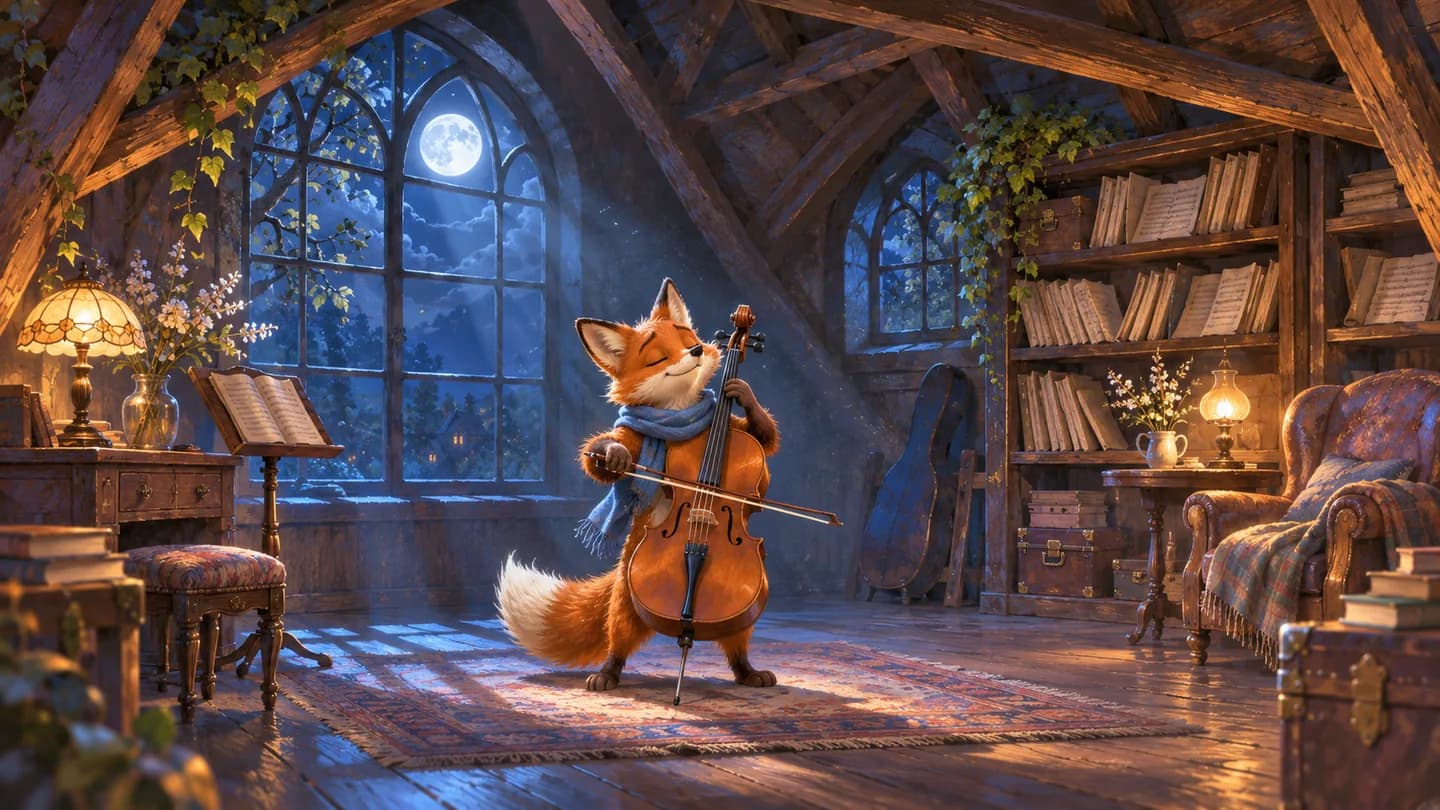
A painterly animated fox playing a cello in the center of a moonlit attic music room extending seamlessly across widescreen
9:16 → 16:9

9:16 to 16:9 methods compared: AI expansion vs. crop and blur bars

Why creators use AI outpainting instead of traditional crop-or-blur resizers.

MethodOriginal 9:16 frameWidescreen lookYouTube readiness
Zoom & crop to fillLoses ~68% of vertical heightFull 16:9, but cuts heads, feet, or actionPoor for full-body or tight portrait clips
Black pillarbox bars100% preserved in center stripEmpty black columns on 68% of screenFeels unfinished on desktop & TV
Blurred sidebars100% preserved in center stripDistracting mirrored blur fillsImmediately looks like a raw TikTok repost
AI 9:16 to 16:9 expansion100% preserved with flexible left/center/right positionContinuous scenery generated on added sidesNative 16:9 feel with safe-zone planning

YouTube 16:9 safe-zone quick reference (1920 × 1080)

Use these clearances alongside the interactive Guide toggle when converting TikTok, Reels, or Shorts to landscape.

Bottom player bar
Bottom 10% (~108 px)
Covered by the timeline scrubber, play button, and timecode whenever viewers hover or tap.
Native CC captions
Bottom 15% (~160 px)
Keep burned-in text and lower-third graphics above this zone so YouTube captions never collide.
End screen cards
Final 5–20s (L/R blocks)
Center your vertical subject or leave opposite-side scenery open so end-screen cards avoid faces.
Title-safe margin
Outer 5% (~54–96 px)
Keeps logos and headlines clear of mobile rounded corners, channel overlays, and TV overscan.

How to convert vertical video to landscape

  1. 1. Upload your clean 9:16 clip

    Select a playable portrait video (ideally an unwatermarked TikTok, Reel, or Short master without hardcoded captions) to preview framing right away.

  2. 2. Frame 16:9 and check safe zones

    Keep 16:9 selected, pick left, center, or right placement, toggle the YouTube safe-zone guide, and review estimated credits.

  3. 3. Generate and export MP4

    Run vertical video to landscape expansion, inspect the extended sides and sound, then download your 16:9 MP4 for YouTube.

Repurpose portrait clips for widescreen destinations

TikTok & Reels to YouTube 16:9

Convert vertical video to landscape for full-length YouTube videos, compilations, and commentary without black or blurred bars.

YouTube B-roll and explainer layouts

Offset a 9:16 clip to the left or right third so your YouTube edit has clean room for chapters, charts, and graphics.

Websites, decks and widescreen ads

Adapt portrait clips for widescreen players on landing pages, pitch decks, and horizontal campaigns with the full subject intact.

Built for clean phone-to-YouTube widescreen workflows

  • Composition and safe-zone preview

    Plan left, center, or right placement and inspect YouTube player, caption, and end-screen safe zones before spending credits.

  • Real scenery instead of blur bars

    AI generates matching widescreen surroundings rather than mirrored blur fills or heavy crops, with optional scene prompts.

  • Up to 180 seconds with background processing

    Expand 9:16 clips up to 3 minutes and 300 MB into 16:9. Leave while processing and download within 30 days.

Vertical video to landscape questions

How do I convert vertical video to landscape without cropping or black bars?

Upload your 9:16 clip and keep 16:9 selected. Instead of cropping 68% of the height or adding black or blurred bars, AI generates continuous scenery beside the complete original frame based on your placement and optional prompt.

How do I convert a TikTok, Instagram Reel, or YouTube Short to YouTube 16:9?

Start with your clean 9:16 clip, upload it here, choose left, center, or right framing, and turn on the YouTube safe-zone guide to verify player and end-screen clearance. Generate and download the 16:9 MP4 ready for YouTube or your editor.

What are the YouTube 16:9 safe zones for captions and end screens?

On a 1920 × 1080 YouTube canvas, keep key visuals and text clear of the bottom 10% player scrubber, the bottom 15% native Closed Captions area, the outer 5% title-safe edge, and the left/right end-screen card regions during the final 5–20 seconds.

Should I place my vertical clip on the left, center, or right of the 16:9 frame?

Use balanced center placement for performances, travel scenes, and vlogs—this also keeps faces safely between YouTube end-screen cards. Choose left or right placement when you want clean open scenery on the opposite side for YouTube titles, bullet lists, or product callouts.

What if my TikTok or Reel already has burned-in captions or a watermark?

For the cleanest 9:16 to 16:9 result, upload the unwatermarked source clip before adding TikTok captions. If captions are already burned into the portrait frame, keep the clip centered and check the bottom 15% CC guide so YouTube subtitles do not stack over existing text.

Can I try converting vertical clips to horizontal for free?

Try one clip up to 10 seconds free with no account required. Generation costs 1 credit per second. Monthly and yearly plans provide additional credits.

Which files, resolutions, and audio are supported?

Upload playable MP4, MOV, WebM, or MKV files up to 180 seconds and 300 MB. Output is a 16:9 MP4 up to 1920 × 1080 pixels that keeps the original duration and source audio when present.

Can I convert a vertical video to horizontal on iPhone?

Yes. Open this page in your mobile browser, select a vertical clip from your phone, check framing and credits, and start generation. Return to the same account to download the finished 16:9 MP4.

Can I leave while my 16:9 conversion runs?

Yes. Processing continues in the background after you leave, with one pending or processing task per account. Uploaded files and completed MP4 results stay available in your account for 30 days.